🚚 Free Worldwide Shipping on All Orders!Shop Now

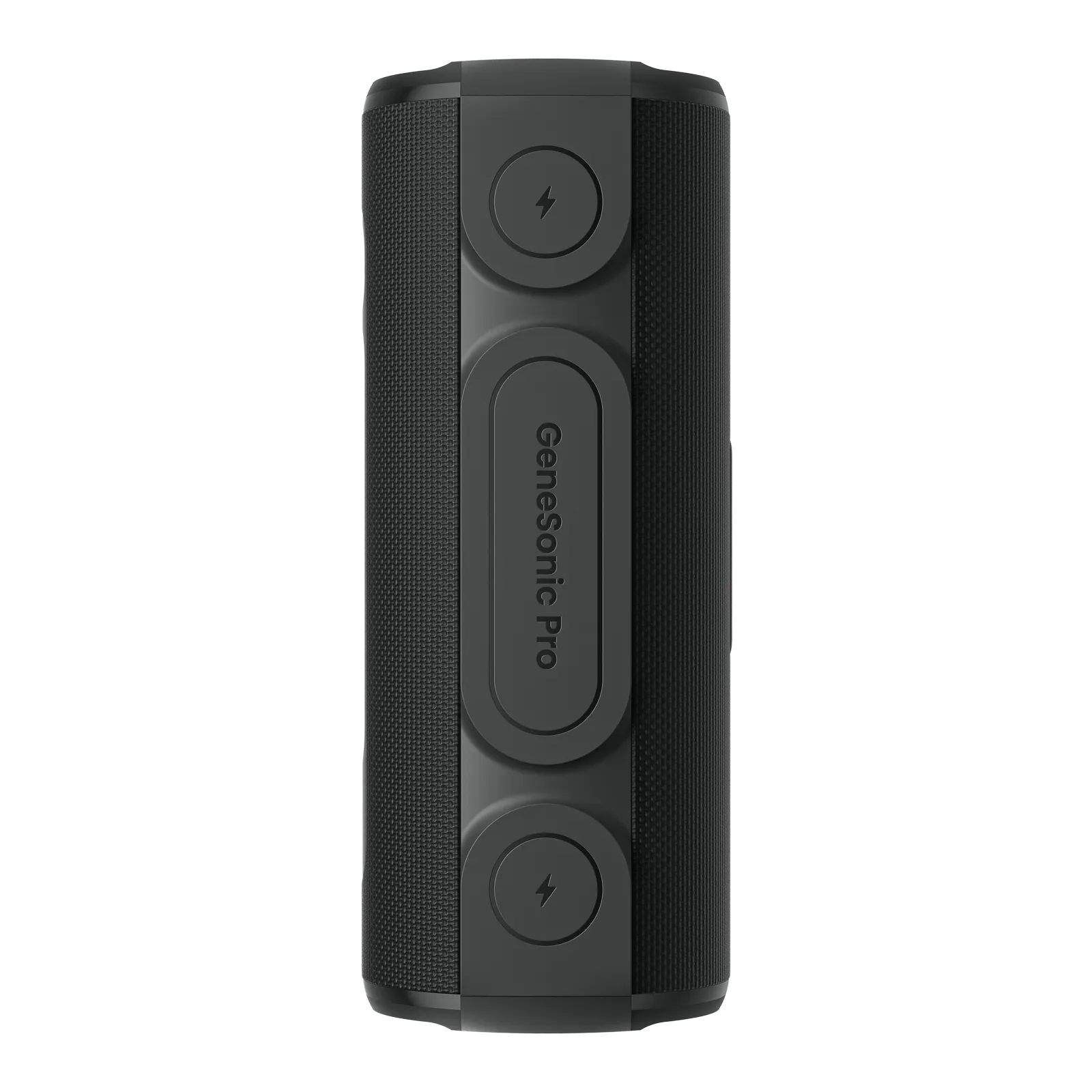
MILESEEY GeneSonic Pro Detachable Golf GPS Speaker
MILESEEY GeneSonic Pro Detachable Golf GPS Speaker
- World’s First Golf Speaker & Detachable GPS Handheld All-in-One
- Premium 3'' Color Touchscreen with 43,000+ Full Course Views
- Built-in GPS, No Phone Required and No Subscription Fee
- 40 W Epic Sound with Audible Yardage Callouts
- Quad-MagLock Mounting with IP67 Dust & Water Protection
MILESEEY GeneSonic Pro
Tune in, Tee off.
Highlights
Built-in GPS
Built-in GPS, No Phone Required and No Subscription Fee
The golf GPS handheld locks onto satellites quickly for fast, reliable performance. No more dealing with dropped signals or complicated setup steps — just precise, easy-to-read yardages right from the start. With no phone required and no subscription fees, you can stay focused on your game and enjoy every moment on the course.
Premium 3'' Color Touchscreen with 43,000+ Preloaded Advanced Course Views
Experience an intuitive, advanced course view with automatic course and hole recognition along with smart scoring prompts. Instantly see detailed layouts of hazards, greens, pin placements, and fairways. Beyond basic FCB data, the responsive touchscreen is protected by reinforced corner guards to help guard against impact. It allows you to plan each shot and monitor your performance with confidence.

Powerful Speaker
Sound That Sparks Your Game
With 40W of bold, resonant audio, your favorite playlist moves with every swing. Crisp audible front, center, and back of green callouts make your planning easier. Whether you’re driving off the tee or getting ready to sink a putt, this speaker keeps you fully engaged, enhancing your every round.
Epic Audio, Designed for the Course and Beyond
Engineered with a dual-band crossover system, a silk-dome tweeter, a racetrack woofer, and dual passive radiators, this speaker delivers tuneful, immersive sound. From crisp highs and warm mids to deep resonant bass, every detail comes alive—whether on the fairway, at home, or partying with friends.
126 N
Quad-MagLock Technology
With four powerful integrated magnets delivering 126 Newtons of force, equivalent to 28 lbs of magnetic strength and roughly the weight of a full golf bag, this speaker affixes securely to your cart or any metal surface. Even on bumpy or hilly courses, it stays firmly in place, keeping the energy high at all times.
The Power to Play all Round
Enjoy up to 15 hours of battery life (at 50% volume), enough to
power you through 3 full 18-hole rounds.
30 W PD Fast Charge Bank
Don’t stop your game or your tunes. Charge your phone via the speaker with 30 W PD
fast charging and spend less time waiting. One Type-C cord powers both your
speaker and phone—no extra cable needed.
IP 67
Ready for Anything, Wherever You Go
Rain and dust won’t slow you down. With IP67 protection, both the speaker and GPS handheld are rugged, reliable, and built to keep up with your game and your vibe.
Pair Speakers for the Ultimate Stereo
Share the vibes with multiple speakers via Multi-Link Mode. Pair two or more to amplify your tunes further.
Three Modes, Perfect Sound Everywhere
Switch between Golf, Home, and Party modes to enjoy powerful outdoor sound, balanced clarity for home, and dynamic bass for your parties.
Golf
Home
Party
One App for all MILESEEY golf devices
The MILESEEY Golf App is the central hub for all MILESEEY golf devices. No matter which device you take to the course, your data stays in one place, continuously building a complete record of your game. Pair your device with the app to enjoy free automatic course map updates, shot-by-shot tracking, and in-depth post-round insights.
Download on the App Store
Get it on Google Play
What's in the Box
What's in the Box

FAQ
FAQ
Using GeneSonic Pro
How do I turn the Speaker on or off?
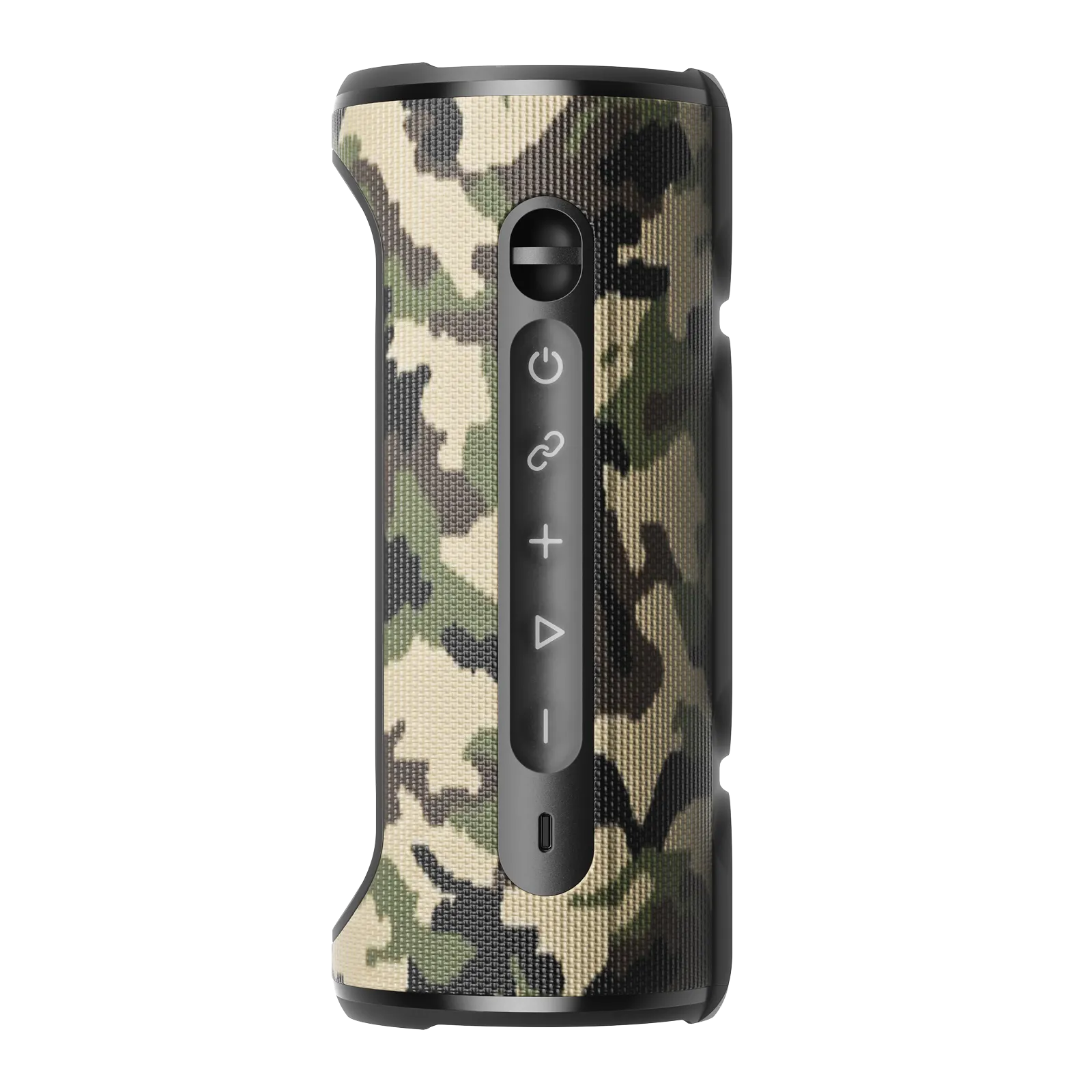
You can press and hold the Power button for 2–5 seconds to turn it on or off. The LED will light up when it’s on.
If the Handheld and Speaker are separated, how do I power them on/off?
You’ll need to power on/off the Handheld and the Speaker separately—they can work independently. For golf voice announcements and music display/control, please make sure both are powered on.
How do I pair my phone with the Speaker?
Make sure the Speaker is on and in pairing mode.
Turn on Bluetooth on your phone, select the device name (usually starts with “GeneSonic Pro”), and your phone will show “Connected” once paired.
How do I pair the Handheld with the Speaker?
Make sure both are powered on.
On the Handheld, go to Bluetooth and select "GeneSonic Pro" to connect.
You can also dock the Handheld onto the Speaker to auto-connect.
Will music start playing automatically after I connect?
No. Since golf is usually a quieter setting, the Speaker won’t auto-play after connecting—you can start music manually whenever you’re ready.
How can I adjust the Speaker volume?
You can use the volume buttons on the Speaker, adjust it on your phone, or use the volume slider on the Handheld.
How do I control music playback?
You can use the Play/Pause button on the Speaker, control it from your phone, or use the music controls on the Handheld.
How do I turn the Handheld on or off?
To turn it on, press and hold the Power button for 2 seconds.
To turn it off, press and hold for 5 seconds, or swipe down and tap the Power icon.
How do I connect the Handheld to the Speaker wirelessly?
Make sure Bluetooth is enabled on both.
On the Handheld, swipe down and tap the GeneSonic device name to connect, or simply dock it onto the Speaker.
When connected, the wireless icon will turn blue.
How do I pair the Handheld with the mobile app?
Turn on Bluetooth on the Handheld.
Find the # ID in Settings → General → About
Then in the app go to Devices → Add Device and select the matching # ID.
You’ll see “Connected” once it’s paired.
Can one Handheld connect to multiple Speakers?
No, the Handheld can only stay connected to one Speaker at a time.
If you want to switch, disconnect the current Speaker first, then pair the new one.
How do I start a golf round on the Handheld?
First, tap the Golf icon on Home.
Then, wait for GPS to lock, choose your course and tee box.
How do I turn on golf voice announcements?
You can swipe down and tap the Announcements icon;
Or go to Golf → Settings → Announcements and toggle it on.
How can I edit my golf score?
In the Golf screen, go into Edit, pick a hole, update strokes/putts/fairway info, then save.
You can also swipe up, select a hole, and edit from there.
Can I use the Speaker outdoors?
Yes. You can use it outdoors—it's built for outdoor use with an IP67 rating, so it can handle dust and wet conditions.
How do I clean the Speaker?
You can wipe it with a soft, dry cloth. Please avoid using chemical cleaners directly on the device.
Features & How It Works
What is the Handheld mainly used for?
You can use the Handheld to control the Speaker and access golf-related features during your round.
How do I link multiple Speakers together?
Turn on all the Speakers you want to link.
Press the Link button on the main Speaker, and the others will automatically find and connect. Once connected, they’ll play the same audio in sync.
How do I update the Speaker firmware (OTA)?
Make sure the Handheld is connected to the Speaker (docking is the easiest way) and the Handheld is connected to the app.
If a new Speaker firmware is available, you’ll see an update prompt (a red dot on the version).
Keep the connection and network stable, and make sure the battery is sufficient during the update.
What do the stats on the scorecard mean?
Here’s what the common fields mean:
+12: your total score vs. par
35: usually your total strokes so far
FAIRWAY: your tee-shot landing distribution (left/center/right)
APPROACH: your approach-shot landing distribution (green/long/short/left/right)
HOLE (P3/P4): the hole’s par
S: strokes for that hole
FIR: fairway hit (not counted on par-3 holes)
GIR: green in regulation
P: putts
What’s the strong magnet for?
You can attach the Speaker securely to metal parts of a golf cart—no extra mount needed—so it stays put over bumps and is easy to grab and go.
Is the magnet strong enough—will it fall off on bumpy rides?
It’s tuned for normal golf-cart bumps. If you place it on a flat metal surface, it should stay secure.
For very rough terrain, avoid high speeds and avoid placing it on edges where it can get knocked.
Can the Speaker’s strong magnet affect electronics on a golf cart?
It can, in some cases. To be safe, keep it away from the cart’s electronics (like the dashboard, GPS, or battery system) and mount it on metal areas farther away, such as the rear rail.
Is the Speaker’s strong magnet safe for people?
The magnet is designed to meet applicable safety standards, so it’s safe for everyday use. If you have a pacemaker or other implanted medical device, please check with your doctor or keep at least 50 cm (20 in) away.
Is it safe for kids to handle the Speaker with a strong magnet?
Please use caution—the magnet may pull on metal jewelry and could cause scratches. We recommend adult supervision.
What should I avoid placing next to the Speaker when carrying it?
Please don’t keep it close to magstripe cards (bank/access cards), sensitive electronics (phones, watches, cameras, laptop drives), or precision tools (rangefinders, compasses).
The magnet may demagnetize or interfere with them.
What if a magstripe card stops working after being near the Speaker?
Magstripe data usually can’t be restored once demagnetized. You’ll need to contact the card issuer and replace the card.
Where should I mount the Speaker on a golf cart?
For the best hold, place it on a flat metal surface. Also try to keep it away from control electronics and wiring areas to reduce the chance of interference.
Will the magnet get weaker over time?
In normal use (normal temperature, dry conditions, no hard impacts), the magnet weakens very slowly and should last a long time. If it suddenly feels weaker, it’s usually due to debris on the contact surface, an impact, or housing deformation. You can clean the surface and check for damage—if needed, please contact support.
Purchase & Support
What is the Handheld’s protection rating?
The Handheld is rated IP67, so you can count on full dust protection and water resistance up to 1 meter for 30 minutes.
How long does the Handheld battery last?
You can get about 4.5 hours at maximum brightness.
In normal use, it usually lasts longer thanks to auto brightness and auto sleep settings.
How long does it take to fully charge the Handheld?
You can fully charge it in about 3 hours with a standard charger.
How long does it take to charge the Speaker?
You can fully charge the Speaker in about 1–2 hours under normal conditions.
What should I do if the wireless connection fails?
You can try these quick steps: make sure both devices are on and Bluetooth is enabled.
If your phone can’t connect, put the Speaker back into pairing mode and try again.
If the Handheld can’t connect, dock it onto the Speaker or reconnect from the wireless list.
If it still doesn’t work, restart both and try again.
What if it doesn’t reconnect automatically after disconnecting?
You can move the devices closer and reduce obstacles/interference.
If needed, restart both devices. As a last step, forget the connection and pair again.
What if the connection is unstable or the range feels short?
This is usually caused by interference, obstacles, or too much distance.
Try moving closer, reducing blockages, and staying away from areas with lots of wireless devices. Switching to a clearer location can help too.
What if GPS can’t locate or looks inaccurate?
You can move to an open area with fewer obstructions, make sure your course data is up to date in the app, and restart the Handheld if needed.
What if the Handheld can’t connect to the Speaker?
Make sure both are on and Bluetooth is enabled.
Keep the Handheld close to the Speaker (within about 10 meters), or simply dock the Handheld onto the Speaker to reconnect.
If it still won’t connect, restart both devices and try again.
What if the Handheld buttons or screen don’t respond?
You can press and hold the Power button for 5 seconds to shut it down.
If it’s still unresponsive, press and hold for 10 seconds to force reset.
What should I do if it freezes/bricks or makes abnormal noise during an OTA update or normal use?
You can press and hold the Power button for 10+ seconds to force shut down and reset, then turn it back on. If it still isn’t normal, try running the OTA update again.
If the issue remains, please contact support for service.
What if I can’t find my Handheld?
You can open the app, go to Devices, and use Find My Device (the Handheld needs to be locatable for this to work).
What if the Speaker is too quiet or the sound quality isn’t great?
You can start by checking the volume level.
Then try switching the EQ, make sure nothing is blocking the Speaker, and confirm the wireless connection is stable.
What if the audio distorts at high volume?
Distortion is usually caused by volume being too high, low-quality audio, or the device getting too warm.
Try lowering the volume first, switch to a higher-quality audio source, and let it cool down if it feels hot.
What if the battery indicator seems inaccurate?
You can try a full cycle—drain the battery low, then charge it to 100% to recalibrate.
Also check for firmware updates. If it’s still off, please contact support.
What if the battery drains too fast during playback?
This can happen with high volume, cold temperatures, or an unstable wireless connection. Try lowering the volume, use it in a milder environment, and keep the connection as stable as possible.
Product Information
Product Information
Shipping & Returns
Shipping & Returns






MILESEEY GeneSonic Pro Detachable Golf GPS Speaker
MILESEEY GeneSonic Pro Detachable Golf GPS Speaker
MILESEEY GeneSonic Pro Detachable Golf GPS Speaker
- World’s First Golf Speaker & Detachable GPS Handheld All-in-One
- Premium 3'' Color Touchscreen with 43,000+ Full Course Views
- Built-in GPS, No Phone Required and No Subscription Fee
- 40 W Epic Sound with Audible Yardage Callouts
- Quad-MagLock Mounting with IP67 Dust & Water Protection
MILESEEY GeneSonic Pro
Tune in, Tee off.
Highlights
Built-in GPS
Built-in GPS, No Phone Required and No Subscription Fee
The golf GPS handheld locks onto satellites quickly for fast, reliable performance. No more dealing with dropped signals or complicated setup steps — just precise, easy-to-read yardages right from the start. With no phone required and no subscription fees, you can stay focused on your game and enjoy every moment on the course.
Premium 3'' Color Touchscreen with 43,000+ Preloaded Advanced Course Views
Experience an intuitive, advanced course view with automatic course and hole recognition along with smart scoring prompts. Instantly see detailed layouts of hazards, greens, pin placements, and fairways. Beyond basic FCB data, the responsive touchscreen is protected by reinforced corner guards to help guard against impact. It allows you to plan each shot and monitor your performance with confidence.
Powerful Speaker
Sound That Sparks Your Game
With 40W of bold, resonant audio, your favorite playlist moves with every swing. Crisp audible front, center, and back of green callouts make your planning easier. Whether you’re driving off the tee or getting ready to sink a putt, this speaker keeps you fully engaged, enhancing your every round.
Epic Audio, Designed for the Course and Beyond
Engineered with a dual-band crossover system, a silk-dome tweeter, a racetrack woofer, and dual passive radiators, this speaker delivers tuneful, immersive sound. From crisp highs and warm mids to deep resonant bass, every detail comes alive—whether on the fairway, at home, or partying with friends.
126 N
Quad-MagLock Technology
With four powerful integrated magnets delivering 126 Newtons of force, equivalent to 28 lbs of magnetic strength and roughly the weight of a full golf bag, this speaker affixes securely to your cart or any metal surface. Even on bumpy or hilly courses, it stays firmly in place, keeping the energy high at all times.
The Power to Play all Round
Enjoy up to 15 hours of battery life (at 50% volume), enough to
power you through 3 full 18-hole rounds.
30 W PD Fast Charge Bank
Don’t stop your game or your tunes. Charge your phone via the speaker with 30 W PD
fast charging and spend less time waiting. One Type-C cord powers both your
speaker and phone—no extra cable needed.
IP 67
Ready for Anything, Wherever You Go
Rain and dust won’t slow you down. With IP67 protection, both the speaker and GPS handheld are rugged, reliable, and built to keep up with your game and your vibe.
Pair Speakers for the Ultimate Stereo
Share the vibes with multiple speakers via Multi-Link Mode. Pair two or more to amplify your tunes further.
Three Modes, Perfect Sound Everywhere
Switch between Golf, Home, and Party modes to enjoy powerful outdoor sound, balanced clarity for home, and dynamic bass for your parties.
Golf
Home
Party
One App for all MILESEEY golf devices
The MILESEEY Golf App is the central hub for all MILESEEY golf devices. No matter which device you take to the course, your data stays in one place, continuously building a complete record of your game. Pair your device with the app to enjoy free automatic course map updates, shot-by-shot tracking, and in-depth post-round insights.
Download on the App Store
Get it on Google Play
What's in the Box
What's in the Box
FAQ
FAQ
Using GeneSonic Pro
How do I turn the Speaker on or off?
You can press and hold the Power button for 2–5 seconds to turn it on or off. The LED will light up when it’s on.
If the Handheld and Speaker are separated, how do I power them on/off?
You’ll need to power on/off the Handheld and the Speaker separately—they can work independently. For golf voice announcements and music display/control, please make sure both are powered on.
How do I pair my phone with the Speaker?
Make sure the Speaker is on and in pairing mode.
Turn on Bluetooth on your phone, select the device name (usually starts with “GeneSonic Pro”), and your phone will show “Connected” once paired.
How do I pair the Handheld with the Speaker?
Make sure both are powered on.
On the Handheld, go to Bluetooth and select "GeneSonic Pro" to connect.
You can also dock the Handheld onto the Speaker to auto-connect.
Will music start playing automatically after I connect?
No. Since golf is usually a quieter setting, the Speaker won’t auto-play after connecting—you can start music manually whenever you’re ready.
How can I adjust the Speaker volume?
You can use the volume buttons on the Speaker, adjust it on your phone, or use the volume slider on the Handheld.
How do I control music playback?
You can use the Play/Pause button on the Speaker, control it from your phone, or use the music controls on the Handheld.
How do I turn the Handheld on or off?
To turn it on, press and hold the Power button for 2 seconds.
To turn it off, press and hold for 5 seconds, or swipe down and tap the Power icon.
How do I connect the Handheld to the Speaker wirelessly?
Make sure Bluetooth is enabled on both.
On the Handheld, swipe down and tap the GeneSonic device name to connect, or simply dock it onto the Speaker.
When connected, the wireless icon will turn blue.
How do I pair the Handheld with the mobile app?
Turn on Bluetooth on the Handheld.
Find the # ID in Settings → General → About
Then in the app go to Devices → Add Device and select the matching # ID.
You’ll see “Connected” once it’s paired.
Can one Handheld connect to multiple Speakers?
No, the Handheld can only stay connected to one Speaker at a time.
If you want to switch, disconnect the current Speaker first, then pair the new one.
How do I start a golf round on the Handheld?
First, tap the Golf icon on Home.
Then, wait for GPS to lock, choose your course and tee box.
How do I turn on golf voice announcements?
You can swipe down and tap the Announcements icon;
Or go to Golf → Settings → Announcements and toggle it on.
How can I edit my golf score?
In the Golf screen, go into Edit, pick a hole, update strokes/putts/fairway info, then save.
You can also swipe up, select a hole, and edit from there.
Can I use the Speaker outdoors?
Yes. You can use it outdoors—it's built for outdoor use with an IP67 rating, so it can handle dust and wet conditions.
How do I clean the Speaker?
You can wipe it with a soft, dry cloth. Please avoid using chemical cleaners directly on the device.
Features & How It Works
What is the Handheld mainly used for?
You can use the Handheld to control the Speaker and access golf-related features during your round.
How do I link multiple Speakers together?
Turn on all the Speakers you want to link.
Press the Link button on the main Speaker, and the others will automatically find and connect. Once connected, they’ll play the same audio in sync.
How do I update the Speaker firmware (OTA)?
Make sure the Handheld is connected to the Speaker (docking is the easiest way) and the Handheld is connected to the app.
If a new Speaker firmware is available, you’ll see an update prompt (a red dot on the version).
Keep the connection and network stable, and make sure the battery is sufficient during the update.
What do the stats on the scorecard mean?
Here’s what the common fields mean:
+12: your total score vs. par
35: usually your total strokes so far
FAIRWAY: your tee-shot landing distribution (left/center/right)
APPROACH: your approach-shot landing distribution (green/long/short/left/right)
HOLE (P3/P4): the hole’s par
S: strokes for that hole
FIR: fairway hit (not counted on par-3 holes)
GIR: green in regulation
P: putts
What’s the strong magnet for?
You can attach the Speaker securely to metal parts of a golf cart—no extra mount needed—so it stays put over bumps and is easy to grab and go.
Is the magnet strong enough—will it fall off on bumpy rides?
It’s tuned for normal golf-cart bumps. If you place it on a flat metal surface, it should stay secure.
For very rough terrain, avoid high speeds and avoid placing it on edges where it can get knocked.
Can the Speaker’s strong magnet affect electronics on a golf cart?
It can, in some cases. To be safe, keep it away from the cart’s electronics (like the dashboard, GPS, or battery system) and mount it on metal areas farther away, such as the rear rail.
Is the Speaker’s strong magnet safe for people?
The magnet is designed to meet applicable safety standards, so it’s safe for everyday use. If you have a pacemaker or other implanted medical device, please check with your doctor or keep at least 50 cm (20 in) away.
Is it safe for kids to handle the Speaker with a strong magnet?
Please use caution—the magnet may pull on metal jewelry and could cause scratches. We recommend adult supervision.
What should I avoid placing next to the Speaker when carrying it?
Please don’t keep it close to magstripe cards (bank/access cards), sensitive electronics (phones, watches, cameras, laptop drives), or precision tools (rangefinders, compasses).
The magnet may demagnetize or interfere with them.
What if a magstripe card stops working after being near the Speaker?
Magstripe data usually can’t be restored once demagnetized. You’ll need to contact the card issuer and replace the card.
Where should I mount the Speaker on a golf cart?
For the best hold, place it on a flat metal surface. Also try to keep it away from control electronics and wiring areas to reduce the chance of interference.
Will the magnet get weaker over time?
In normal use (normal temperature, dry conditions, no hard impacts), the magnet weakens very slowly and should last a long time. If it suddenly feels weaker, it’s usually due to debris on the contact surface, an impact, or housing deformation. You can clean the surface and check for damage—if needed, please contact support.
Purchase & Support
What is the Handheld’s protection rating?
The Handheld is rated IP67, so you can count on full dust protection and water resistance up to 1 meter for 30 minutes.
How long does the Handheld battery last?
You can get about 4.5 hours at maximum brightness.
In normal use, it usually lasts longer thanks to auto brightness and auto sleep settings.
How long does it take to fully charge the Handheld?
You can fully charge it in about 3 hours with a standard charger.
How long does it take to charge the Speaker?
You can fully charge the Speaker in about 1–2 hours under normal conditions.
What should I do if the wireless connection fails?
You can try these quick steps: make sure both devices are on and Bluetooth is enabled.
If your phone can’t connect, put the Speaker back into pairing mode and try again.
If the Handheld can’t connect, dock it onto the Speaker or reconnect from the wireless list.
If it still doesn’t work, restart both and try again.
What if it doesn’t reconnect automatically after disconnecting?
You can move the devices closer and reduce obstacles/interference.
If needed, restart both devices. As a last step, forget the connection and pair again.
What if the connection is unstable or the range feels short?
This is usually caused by interference, obstacles, or too much distance.
Try moving closer, reducing blockages, and staying away from areas with lots of wireless devices. Switching to a clearer location can help too.
What if GPS can’t locate or looks inaccurate?
You can move to an open area with fewer obstructions, make sure your course data is up to date in the app, and restart the Handheld if needed.
What if the Handheld can’t connect to the Speaker?
Make sure both are on and Bluetooth is enabled.
Keep the Handheld close to the Speaker (within about 10 meters), or simply dock the Handheld onto the Speaker to reconnect.
If it still won’t connect, restart both devices and try again.
What if the Handheld buttons or screen don’t respond?
You can press and hold the Power button for 5 seconds to shut it down.
If it’s still unresponsive, press and hold for 10 seconds to force reset.
What should I do if it freezes/bricks or makes abnormal noise during an OTA update or normal use?
You can press and hold the Power button for 10+ seconds to force shut down and reset, then turn it back on. If it still isn’t normal, try running the OTA update again.
If the issue remains, please contact support for service.
What if I can’t find my Handheld?
You can open the app, go to Devices, and use Find My Device (the Handheld needs to be locatable for this to work).
What if the Speaker is too quiet or the sound quality isn’t great?
You can start by checking the volume level.
Then try switching the EQ, make sure nothing is blocking the Speaker, and confirm the wireless connection is stable.
What if the audio distorts at high volume?
Distortion is usually caused by volume being too high, low-quality audio, or the device getting too warm.
Try lowering the volume first, switch to a higher-quality audio source, and let it cool down if it feels hot.
What if the battery indicator seems inaccurate?
You can try a full cycle—drain the battery low, then charge it to 100% to recalibrate.
Also check for firmware updates. If it’s still off, please contact support.
What if the battery drains too fast during playback?
This can happen with high volume, cold temperatures, or an unstable wireless connection. Try lowering the volume, use it in a milder environment, and keep the connection as stable as possible.
Select Color
From $299.99
MILESEEY GeneSonic Pro Detachable Golf GPS Speaker—
$299.99
Product Information
Product Information
Shipping & Returns
Shipping & Returns
Description
MILESEEY GeneSonic Pro Detachable Golf GPS Speaker
- World’s First Golf Speaker & Detachable GPS Handheld All-in-One
- Premium 3'' Color Touchscreen with 43,000+ Full Course Views
- Built-in GPS, No Phone Required and No Subscription Fee
- 40 W Epic Sound with Audible Yardage Callouts
- Quad-MagLock Mounting with IP67 Dust & Water Protection
MILESEEY GeneSonic Pro
Tune in, Tee off.
Highlights
Built-in GPS
Built-in GPS, No Phone Required and No Subscription Fee
The golf GPS handheld locks onto satellites quickly for fast, reliable performance. No more dealing with dropped signals or complicated setup steps — just precise, easy-to-read yardages right from the start. With no phone required and no subscription fees, you can stay focused on your game and enjoy every moment on the course.
Premium 3'' Color Touchscreen with 43,000+ Preloaded Advanced Course Views
Experience an intuitive, advanced course view with automatic course and hole recognition along with smart scoring prompts. Instantly see detailed layouts of hazards, greens, pin placements, and fairways. Beyond basic FCB data, the responsive touchscreen is protected by reinforced corner guards to help guard against impact. It allows you to plan each shot and monitor your performance with confidence.
Powerful Speaker
Sound That Sparks Your Game
With 40W of bold, resonant audio, your favorite playlist moves with every swing. Crisp audible front, center, and back of green callouts make your planning easier. Whether you’re driving off the tee or getting ready to sink a putt, this speaker keeps you fully engaged, enhancing your every round.
Epic Audio, Designed for the Course and Beyond
Engineered with a dual-band crossover system, a silk-dome tweeter, a racetrack woofer, and dual passive radiators, this speaker delivers tuneful, immersive sound. From crisp highs and warm mids to deep resonant bass, every detail comes alive—whether on the fairway, at home, or partying with friends.
126 N
Quad-MagLock Technology
With four powerful integrated magnets delivering 126 Newtons of force, equivalent to 28 lbs of magnetic strength and roughly the weight of a full golf bag, this speaker affixes securely to your cart or any metal surface. Even on bumpy or hilly courses, it stays firmly in place, keeping the energy high at all times.
The Power to Play all Round
Enjoy up to 15 hours of battery life (at 50% volume), enough to
power you through 3 full 18-hole rounds.
30 W PD Fast Charge Bank
Don’t stop your game or your tunes. Charge your phone via the speaker with 30 W PD
fast charging and spend less time waiting. One Type-C cord powers both your
speaker and phone—no extra cable needed.
IP 67
Ready for Anything, Wherever You Go
Rain and dust won’t slow you down. With IP67 protection, both the speaker and GPS handheld are rugged, reliable, and built to keep up with your game and your vibe.
Pair Speakers for the Ultimate Stereo
Share the vibes with multiple speakers via Multi-Link Mode. Pair two or more to amplify your tunes further.
Three Modes, Perfect Sound Everywhere
Switch between Golf, Home, and Party modes to enjoy powerful outdoor sound, balanced clarity for home, and dynamic bass for your parties.
Golf
Home
Party
One App for all MILESEEY golf devices
The MILESEEY Golf App is the central hub for all MILESEEY golf devices. No matter which device you take to the course, your data stays in one place, continuously building a complete record of your game. Pair your device with the app to enjoy free automatic course map updates, shot-by-shot tracking, and in-depth post-round insights.
Download on the App Store
Get it on Google Play
What's in the Box
What's in the Box
FAQ
FAQ
Using GeneSonic Pro
How do I turn the Speaker on or off?
You can press and hold the Power button for 2–5 seconds to turn it on or off. The LED will light up when it’s on.
If the Handheld and Speaker are separated, how do I power them on/off?
You’ll need to power on/off the Handheld and the Speaker separately—they can work independently. For golf voice announcements and music display/control, please make sure both are powered on.
How do I pair my phone with the Speaker?
Make sure the Speaker is on and in pairing mode.
Turn on Bluetooth on your phone, select the device name (usually starts with “GeneSonic Pro”), and your phone will show “Connected” once paired.
How do I pair the Handheld with the Speaker?
Make sure both are powered on.
On the Handheld, go to Bluetooth and select "GeneSonic Pro" to connect.
You can also dock the Handheld onto the Speaker to auto-connect.
Will music start playing automatically after I connect?
No. Since golf is usually a quieter setting, the Speaker won’t auto-play after connecting—you can start music manually whenever you’re ready.
How can I adjust the Speaker volume?
You can use the volume buttons on the Speaker, adjust it on your phone, or use the volume slider on the Handheld.
How do I control music playback?
You can use the Play/Pause button on the Speaker, control it from your phone, or use the music controls on the Handheld.
How do I turn the Handheld on or off?
To turn it on, press and hold the Power button for 2 seconds.
To turn it off, press and hold for 5 seconds, or swipe down and tap the Power icon.
How do I connect the Handheld to the Speaker wirelessly?
Make sure Bluetooth is enabled on both.
On the Handheld, swipe down and tap the GeneSonic device name to connect, or simply dock it onto the Speaker.
When connected, the wireless icon will turn blue.
How do I pair the Handheld with the mobile app?
Turn on Bluetooth on the Handheld.
Find the # ID in Settings → General → About
Then in the app go to Devices → Add Device and select the matching # ID.
You’ll see “Connected” once it’s paired.
Can one Handheld connect to multiple Speakers?
No, the Handheld can only stay connected to one Speaker at a time.
If you want to switch, disconnect the current Speaker first, then pair the new one.
How do I start a golf round on the Handheld?
First, tap the Golf icon on Home.
Then, wait for GPS to lock, choose your course and tee box.
How do I turn on golf voice announcements?
You can swipe down and tap the Announcements icon;
Or go to Golf → Settings → Announcements and toggle it on.
How can I edit my golf score?
In the Golf screen, go into Edit, pick a hole, update strokes/putts/fairway info, then save.
You can also swipe up, select a hole, and edit from there.
Can I use the Speaker outdoors?
Yes. You can use it outdoors—it's built for outdoor use with an IP67 rating, so it can handle dust and wet conditions.
How do I clean the Speaker?
You can wipe it with a soft, dry cloth. Please avoid using chemical cleaners directly on the device.
Features & How It Works
What is the Handheld mainly used for?
You can use the Handheld to control the Speaker and access golf-related features during your round.
How do I link multiple Speakers together?
Turn on all the Speakers you want to link.
Press the Link button on the main Speaker, and the others will automatically find and connect. Once connected, they’ll play the same audio in sync.
How do I update the Speaker firmware (OTA)?
Make sure the Handheld is connected to the Speaker (docking is the easiest way) and the Handheld is connected to the app.
If a new Speaker firmware is available, you’ll see an update prompt (a red dot on the version).
Keep the connection and network stable, and make sure the battery is sufficient during the update.
What do the stats on the scorecard mean?
Here’s what the common fields mean:
+12: your total score vs. par
35: usually your total strokes so far
FAIRWAY: your tee-shot landing distribution (left/center/right)
APPROACH: your approach-shot landing distribution (green/long/short/left/right)
HOLE (P3/P4): the hole’s par
S: strokes for that hole
FIR: fairway hit (not counted on par-3 holes)
GIR: green in regulation
P: putts
What’s the strong magnet for?
You can attach the Speaker securely to metal parts of a golf cart—no extra mount needed—so it stays put over bumps and is easy to grab and go.
Is the magnet strong enough—will it fall off on bumpy rides?
It’s tuned for normal golf-cart bumps. If you place it on a flat metal surface, it should stay secure.
For very rough terrain, avoid high speeds and avoid placing it on edges where it can get knocked.
Can the Speaker’s strong magnet affect electronics on a golf cart?
It can, in some cases. To be safe, keep it away from the cart’s electronics (like the dashboard, GPS, or battery system) and mount it on metal areas farther away, such as the rear rail.
Is the Speaker’s strong magnet safe for people?
The magnet is designed to meet applicable safety standards, so it’s safe for everyday use. If you have a pacemaker or other implanted medical device, please check with your doctor or keep at least 50 cm (20 in) away.
Is it safe for kids to handle the Speaker with a strong magnet?
Please use caution—the magnet may pull on metal jewelry and could cause scratches. We recommend adult supervision.
What should I avoid placing next to the Speaker when carrying it?
Please don’t keep it close to magstripe cards (bank/access cards), sensitive electronics (phones, watches, cameras, laptop drives), or precision tools (rangefinders, compasses).
The magnet may demagnetize or interfere with them.
What if a magstripe card stops working after being near the Speaker?
Magstripe data usually can’t be restored once demagnetized. You’ll need to contact the card issuer and replace the card.
Where should I mount the Speaker on a golf cart?
For the best hold, place it on a flat metal surface. Also try to keep it away from control electronics and wiring areas to reduce the chance of interference.
Will the magnet get weaker over time?
In normal use (normal temperature, dry conditions, no hard impacts), the magnet weakens very slowly and should last a long time. If it suddenly feels weaker, it’s usually due to debris on the contact surface, an impact, or housing deformation. You can clean the surface and check for damage—if needed, please contact support.
Purchase & Support
What is the Handheld’s protection rating?
The Handheld is rated IP67, so you can count on full dust protection and water resistance up to 1 meter for 30 minutes.
How long does the Handheld battery last?
You can get about 4.5 hours at maximum brightness.
In normal use, it usually lasts longer thanks to auto brightness and auto sleep settings.
How long does it take to fully charge the Handheld?
You can fully charge it in about 3 hours with a standard charger.
How long does it take to charge the Speaker?
You can fully charge the Speaker in about 1–2 hours under normal conditions.
What should I do if the wireless connection fails?
You can try these quick steps: make sure both devices are on and Bluetooth is enabled.
If your phone can’t connect, put the Speaker back into pairing mode and try again.
If the Handheld can’t connect, dock it onto the Speaker or reconnect from the wireless list.
If it still doesn’t work, restart both and try again.
What if it doesn’t reconnect automatically after disconnecting?
You can move the devices closer and reduce obstacles/interference.
If needed, restart both devices. As a last step, forget the connection and pair again.
What if the connection is unstable or the range feels short?
This is usually caused by interference, obstacles, or too much distance.
Try moving closer, reducing blockages, and staying away from areas with lots of wireless devices. Switching to a clearer location can help too.
What if GPS can’t locate or looks inaccurate?
You can move to an open area with fewer obstructions, make sure your course data is up to date in the app, and restart the Handheld if needed.
What if the Handheld can’t connect to the Speaker?
Make sure both are on and Bluetooth is enabled.
Keep the Handheld close to the Speaker (within about 10 meters), or simply dock the Handheld onto the Speaker to reconnect.
If it still won’t connect, restart both devices and try again.
What if the Handheld buttons or screen don’t respond?
You can press and hold the Power button for 5 seconds to shut it down.
If it’s still unresponsive, press and hold for 10 seconds to force reset.
What should I do if it freezes/bricks or makes abnormal noise during an OTA update or normal use?
You can press and hold the Power button for 10+ seconds to force shut down and reset, then turn it back on. If it still isn’t normal, try running the OTA update again.
If the issue remains, please contact support for service.
What if I can’t find my Handheld?
You can open the app, go to Devices, and use Find My Device (the Handheld needs to be locatable for this to work).
What if the Speaker is too quiet or the sound quality isn’t great?
You can start by checking the volume level.
Then try switching the EQ, make sure nothing is blocking the Speaker, and confirm the wireless connection is stable.
What if the audio distorts at high volume?
Distortion is usually caused by volume being too high, low-quality audio, or the device getting too warm.
Try lowering the volume first, switch to a higher-quality audio source, and let it cool down if it feels hot.
What if the battery indicator seems inaccurate?
You can try a full cycle—drain the battery low, then charge it to 100% to recalibrate.
Also check for firmware updates. If it’s still off, please contact support.
What if the battery drains too fast during playback?
This can happen with high volume, cold temperatures, or an unstable wireless connection. Try lowering the volume, use it in a milder environment, and keep the connection as stable as possible.