Rapsodo Mobile Launch Monitor (MLM)
Rapsodo Mobile Launch Monitor (MLM)
The Rapsodo Mobile Launch Monitor (MLM) is your ticket to tangible progress. Gain insights into your weaknesses and optimize your strengths with real-time swing replay and data-driven feedback. Witness improvement in your game both on and off the course, all at a price accessible to every player. Elevate your performance with pro-level precision and enhance your golf journey with Rapsodo MLM.
- Game and industry-changing mobile launch monitor
- Pairs iOS camera with radar processing for precise measurements on every swing
- Swing replay with shot trace technology
- Measures up to 11 core golf metrics for total game analysis
- Compatible with Titleist RCT golf balls for spin measurement*
- R-Speed - Non-impact golf swing speed training platform*
- Full indoor/outdoor use
-
iOS compatible only. iPhone or iPad required
#1 RATED PERSONAL LAUNCH MONITOR
The Rapsodo Mobile Launch Monitor (MLM) integrates cutting-edge doppler-radar technology with your iPhone or iPad camera. Experience instant video replay, an active shot tracer, and professional-level accuracy—within 2% of Trackman—measuring Distance, Club Speed, Ball Speed, Launch Angle, Launch Direction, Smash Factor, and more! Elevate your golf practice with precision and real-time feedback using the power of Rapsodo MLM.
Camera + Radar Technology
PAIRED FOR PRECISION

DATA. VISUALIZED.
Swing Replay with Shot Tracer
Club Gapping and Shot Dispersion
Rapsodo Insights
Ball Striking Index
Lifetime Stats History
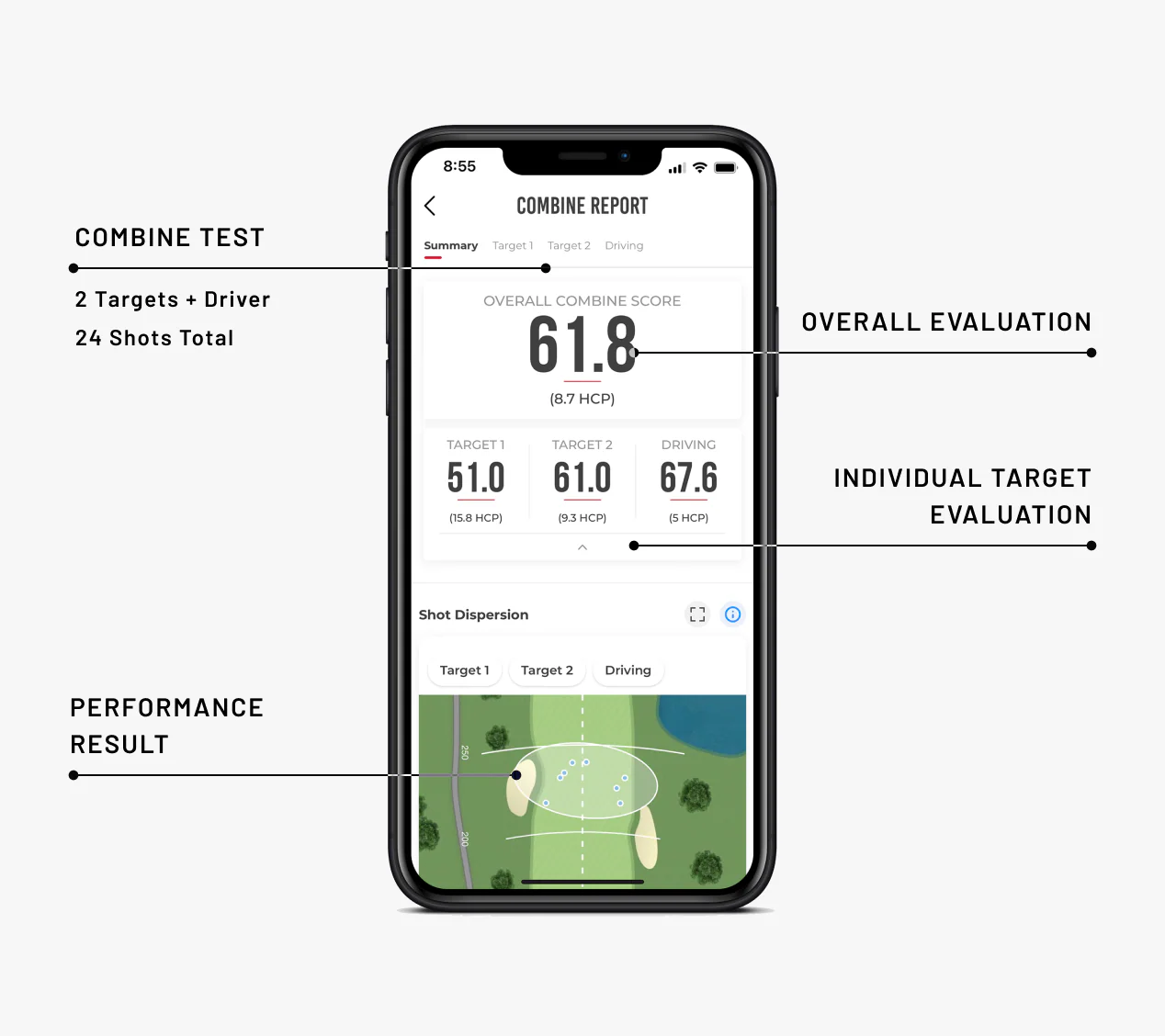
Rapsodo Combine (Award-Winning)
What's In The Box
What's In The Box
- MLM Device
- Protective Case
- USB Charging Cable
- Quick Start Guide
What's Measured
What's Measured
CARRY DISTANCE
Distance the ball travels through the air.
TOTAL DISTANCE
Carry distance plus the distance the ball rolled.
BALL SPEED (Measured)
Velocity of the ball just after impact.
CLUB SPEED (Measured)
Velocity of the club head at impact.
LAUNCH ANGLE (Measured)
Initial angle of ascent of the golf ball immediately after impact.
LAUNCH DIRECTION (Measured)
Initial direction the ball starts relative to the target line.
SMASH FACTOR (Measured)
Ratio of ball speed to club speed.
SIDE CARRY
The distance from the target line based on where the ball lands.
APEX
The maximum height of the golf ball's trajectory.
SHOT TYPE
Shape and relative curve of the flight of the ball.
How To Set Up
How To Set Up
Outdoor set up: Set MLM up 6-8ft behind you and the ball facing down your target line. You want at least 60-80 ft. of ball flight.
Net set up (indoor or outdoor net): Set MLM up 6-8ft behind you and the ball facing down your target line. Set your net at least 8ft in front of the ball. The MLM needs at least 8ft of ball flight to capture data.
Net Set Up & Outdoor and Net Comparison
MLM Net: Min. requirements: iPhone 8 and up, iPad Pro 2nd gen and newer.
MLM Outdoor: Min. requirements: iPhone 6s and up, iPad 2017 and up Recommended: iPhone 7 and up, iPad 2019 onward models (1080p capable front camera) Rapsodo MLM app requires iOS 11 and above

Comparison
Comparison

Compatibility
Compatibility
iOS
Outdoor
iPhone
iPhone 7 and up
Recommended iPhone 8 and up
iPad
iPad 2017 and up (must support 1080p)
Net Mode
iPhone
iPhone 8th Gen and up
iPad
iPad Pro:
iPad Pro 11"-1st Gen and up
iPad Pro:
iPad Pro 12.9"-2nd Gen and up
iPad Air:
iPad Air 3rd Gen and up
iPad Mini:
iPad Mini 5th Gen and up
iPad:
iPad 9th Gen and up
iOS
Min. Requirement: iOS 13
Recommended: Latest iOS Version
MLM App
Download on the App Store
Video Tutorials
Video Tutorials
Practice Session
MLM Tutorial: Practice Session
Share Videos
MLM Tutorial: Share Videos
Review Session During Session
MLM Tutorial: Review Session During Session
Session Review
MLM Tutorial: Review Session During Session
Closest to the Pin
MLM Tutorial: Closest to the Pin
Long Drive
MLM Tutorial: Long Drive
Tutorials
Kindly click the link below to access the MLM Tutorials:
MLM Tutorials
Setup
Setup
How do I setup the Mobile Launch Monitor?
To set up the MLM;
You should make sure that you have fully charged the unit before using it. The light should be amber when charging, it should turn off completely when fully charged.
1. Press the power button on the side, it will go from red to blue when it is connected.
2. The Bluetooth connection should be enabled on the MLM, and you should allow Bluetooth connection through your iPhone settings.
3. Go to Profile, you will see an instription that says “Not Connected”, if you click on that, MLM will show up under available devices.
4. Then select “Play”, and “Practice”. The LED should turn green here.
5. To confirm location use only 1 finger to move the location around and 2 fingers to navigate the direction.You do not need to open your phone camera, once you hit play and then practice, you will see that the camera will open within the app. Allowing camera and microphone access is necessary, you can also check that in your iPhone settings. Type “MLM” in the search bar in your iPhone settings to check that.
6. Red target line should be in line with the ball and the end of the target. MLM must see you and the ball in the frame to be able to see the ball flight. Please use the ball area and the golfer area as a guide.
Do I have to manually calibrate my MLM?
No. Your phone/iPad is default to auto calibration upon opening the MLM app. Simply open the app, connect your device via Bluetooth, and start hitting!
What are the iPhone and iPad requirements?
Outdoor
iPhone
iPhone 7 and up
Recommended iPhone 8 and up
iPad
iPad 2017 and up (must support 1080p)
Net Mode
iPhone
iPhone 8th Gen and up
iPad
iPad Pro:
iPad Pro 11"-1st Gen and up
iPad Pro:
iPad Pro 12.9"-2nd Gen and up
iPad Air:
iPad Air 3rd Gen and up
iPad Mini:
iPad Mini 5th Gen and up
iPad:
iPad 9th Gen and up
iOS
Min. Requirement: iOS 13
Recommended: Latest iOS Version
Why is my MLM not showing data after each shot?
When the MLM triggers (MLM LED turns from Green>Blue>Green) after a shot bit does not display data, please check the following:
1. MLM is aligned behind the ball and aimed down the target line and is able to clearly see the first 60-80 feet of ball flight.
2. Hitting environment is well lit
3. There are no obstructions between the MLM and ball.
FAQ
FAQ
What devices are compatible with the MLM?
iOS
Min. Requirement: iOS 13
Recommended: Latest iOS Version
Outdoor
iPhone
iPhone 7 and up
Recommended iPhone 8 and up
iPad
iPad 2017 and up (must support 1080p)
Net Mode
iPhone
iPhone 8th Gen and up
iPad
iPad Pro 11"-1st Gen and up
iPad Pro 12.9"-2nd Gen and up
iPad Air 3rd Gen and up
iPad Mini 5th Gen and up
iPad 9th Gen and up
What are the metrics that are provided/What does the MLM Premium Membership provide?
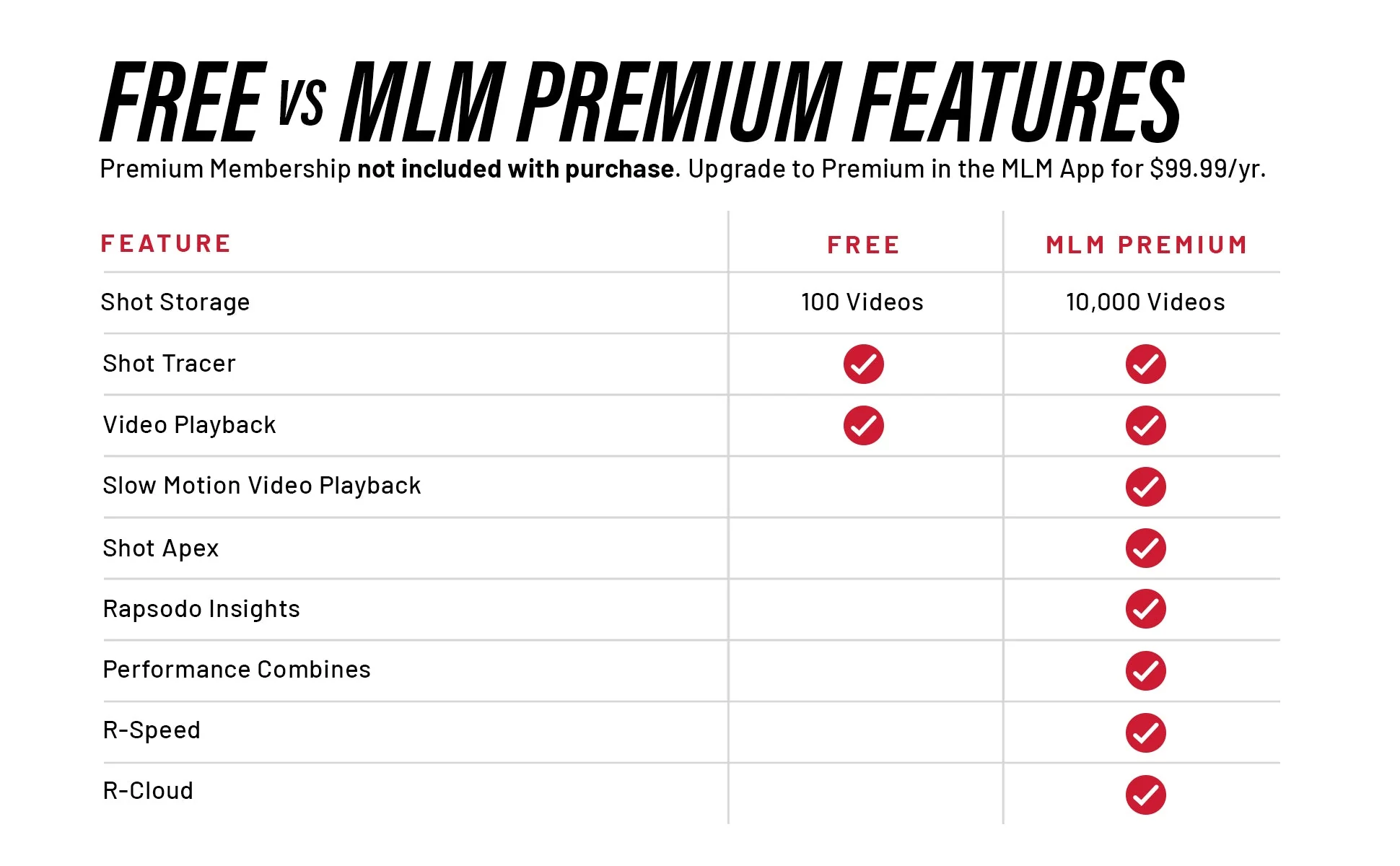
The MLM provides pro-level accuracy on: Carry Distance, Total Distance, Launch Angle, Launch Direction, Side Carry, Smash Factor, Club Speed and Ball Speed. Get the most out of your game with a MLM Premium Membership and get access to Personalized Insights and Key Takeaways like shot dispersion, club gapping, shot shape frequency and more. Plus Premium features like slow motion video replays, shot apex, Performance Combines and access to online golf lessons.
How do I set up the MLM?
Outdoor set up: Set MLM up 6-8ft behind you and the ball facing down your target line. You want at least 60-80 ft. of ball flight.
Net set up (indoor or outdoor net): Set MLM up 6-8ft behind you and the ball facing down your target line. Set your net at least 8ft in front of the ball. The MLM needs at least 8ft of ball flight to capture data.
Net Set Up & Outdoor and Net Comparison
How do I change my clubs?
There are a few ways to change clubs:
You can use smart club recognition during your outdoor session to change clubs or you can manually change by tapping on the upper right-hand corner and selecting the club you will be using.
Does ball type matter?
Yes. The MLM assumes you are using a premium ball. If you are using a range ball, depending on how used they are, you may see your distance appear a bit short. You cannot use whiffle or foam balls.
Does the MLM record total or carry?
You can select whether you would your data to be “carry, total, or both”. To see that data, go into a session, tap on the change metrics icon (listed above club type) and select between which data points you would like to appear
What does normalize data mean/Do you take elevation into account?
Yes. The MLM normalizes data. This means the MLM does not take wind, weather, slope or elevation into consideration. It assumes a premium ball is being used. Since the MLM assumes you are at sea level, if you are located in an area with high altitude/elevation, you may see shorter distances appear on your MLM.
Can I customize the top data points shown/what is said back to me?
Yes, this is currently a premium membership feature. You can change the data points by starting your session and tapping on the bottom left-hand part of the screen (you should see three lines). Once you tap on the three lines, the second option is “Change Metrics”. Then select the three metrics you would like to be shown in instant feedback.
How can I stop overheating?
Overheating is due to your iPhone/iPad getting too hot. Generally, your iOS device is overheating more so from the direct sunlight/humidity than the actual temperature. To help prevent this, shade your MLM as much as possible, such as with your golf bag. Make sure all apps are closed out in the background of your device and just the MLM app is running. Taking off the case will also help with your phone not overheating as quickly.
Note: Please note iPhones made before the iPhone 11 are more prone to overheating.
Can I use SuperSpeed or other swing training devices with the MLM?
The MLM requires a ball to be hit in order to receive data. Using SuperSpeed Sticks or other trainers with the MLM where you are not hitting a ball, will result in you not be shown any swing speed data.
I am seeing the light change from green>blue>green but no data is appearing, why?
If you are seeing your MLM change from green>blue>green but no data is appearing, please see the below steps to ensure proper set up and alignment:
1. The MLM is set up on a flat surface and not angled; if you are on a slant, use the MLM case to level it to the ball.
2. The MLM is at least 6 ft behind the ball and no more than 8ft.
3. The MLM is facing down the target line in order for ball flight to be seen. There needs to be at least 8ft of ball flight before hitting the net in order for data to trigger and at least 60-80 ft when hitting outdoor.
4. Make sure no objects are obstructing the camera view of the ball. Ex. Too tall of a mat, tall grass etc. The ball needs to be in view in order to track data.
5. Ball must be in view on the screen, if you cannot see the ball on the screen, the MLM will not be able to pick up its starting position.
6. Lighting: Wither your net is located indoors or outdoors, you need sufficient lighting. This includes at the beginning position of the ball as well as the ball flight. If the initial ball cannot be seen, you will not receive data, as well if the ball flight cannot be seen, you will not receive data. A room with overhead lighting filling the room is suggested.
7. If you have a magnetic phone case, remove before using MLM.
Manual
Manual
Product Information
Product Information
Shipping & Returns
Shipping & Returns






Rapsodo Mobile Launch Monitor (MLM)
Rapsodo Mobile Launch Monitor (MLM)
Rapsodo Mobile Launch Monitor (MLM)
The Rapsodo Mobile Launch Monitor (MLM) is your ticket to tangible progress. Gain insights into your weaknesses and optimize your strengths with real-time swing replay and data-driven feedback. Witness improvement in your game both on and off the course, all at a price accessible to every player. Elevate your performance with pro-level precision and enhance your golf journey with Rapsodo MLM.
- Game and industry-changing mobile launch monitor
- Pairs iOS camera with radar processing for precise measurements on every swing
- Swing replay with shot trace technology
- Measures up to 11 core golf metrics for total game analysis
- Compatible with Titleist RCT golf balls for spin measurement*
- R-Speed - Non-impact golf swing speed training platform*
- Full indoor/outdoor use
-
iOS compatible only. iPhone or iPad required
#1 RATED PERSONAL LAUNCH MONITOR
The Rapsodo Mobile Launch Monitor (MLM) integrates cutting-edge doppler-radar technology with your iPhone or iPad camera. Experience instant video replay, an active shot tracer, and professional-level accuracy—within 2% of Trackman—measuring Distance, Club Speed, Ball Speed, Launch Angle, Launch Direction, Smash Factor, and more! Elevate your golf practice with precision and real-time feedback using the power of Rapsodo MLM.
Camera + Radar Technology
PAIRED FOR PRECISION
DATA. VISUALIZED.
Swing Replay with Shot Tracer
Club Gapping and Shot Dispersion
Rapsodo Insights
Ball Striking Index
Lifetime Stats History
Rapsodo Combine (Award-Winning)
What's In The Box
What's In The Box
- MLM Device
- Protective Case
- USB Charging Cable
- Quick Start Guide
What's Measured
What's Measured
CARRY DISTANCE
Distance the ball travels through the air.
TOTAL DISTANCE
Carry distance plus the distance the ball rolled.
BALL SPEED (Measured)
Velocity of the ball just after impact.
CLUB SPEED (Measured)
Velocity of the club head at impact.
LAUNCH ANGLE (Measured)
Initial angle of ascent of the golf ball immediately after impact.
LAUNCH DIRECTION (Measured)
Initial direction the ball starts relative to the target line.
SMASH FACTOR (Measured)
Ratio of ball speed to club speed.
SIDE CARRY
The distance from the target line based on where the ball lands.
APEX
The maximum height of the golf ball's trajectory.
SHOT TYPE
Shape and relative curve of the flight of the ball.
How To Set Up
How To Set Up
Outdoor set up: Set MLM up 6-8ft behind you and the ball facing down your target line. You want at least 60-80 ft. of ball flight.
Net set up (indoor or outdoor net): Set MLM up 6-8ft behind you and the ball facing down your target line. Set your net at least 8ft in front of the ball. The MLM needs at least 8ft of ball flight to capture data.
Net Set Up & Outdoor and Net Comparison
MLM Net: Min. requirements: iPhone 8 and up, iPad Pro 2nd gen and newer.
MLM Outdoor: Min. requirements: iPhone 6s and up, iPad 2017 and up Recommended: iPhone 7 and up, iPad 2019 onward models (1080p capable front camera) Rapsodo MLM app requires iOS 11 and above
Comparison
Comparison
Compatibility
Compatibility
iOS
Outdoor
iPhone
iPhone 7 and up
Recommended iPhone 8 and up
iPad
iPad 2017 and up (must support 1080p)
Net Mode
iPhone
iPhone 8th Gen and up
iPad
iPad Pro:
iPad Pro 11"-1st Gen and up
iPad Pro:
iPad Pro 12.9"-2nd Gen and up
iPad Air:
iPad Air 3rd Gen and up
iPad Mini:
iPad Mini 5th Gen and up
iPad:
iPad 9th Gen and up
iOS
Min. Requirement: iOS 13
Recommended: Latest iOS Version
MLM App
Download on the App Store
Video Tutorials
Video Tutorials
Practice Session
MLM Tutorial: Practice Session
Share Videos
MLM Tutorial: Share Videos
Review Session During Session
MLM Tutorial: Review Session During Session
Session Review
MLM Tutorial: Review Session During Session
Closest to the Pin
MLM Tutorial: Closest to the Pin
Long Drive
MLM Tutorial: Long Drive
Tutorials
Kindly click the link below to access the MLM Tutorials:
MLM Tutorials
Setup
Setup
How do I setup the Mobile Launch Monitor?
To set up the MLM;
You should make sure that you have fully charged the unit before using it. The light should be amber when charging, it should turn off completely when fully charged.
1. Press the power button on the side, it will go from red to blue when it is connected.
2. The Bluetooth connection should be enabled on the MLM, and you should allow Bluetooth connection through your iPhone settings.
3. Go to Profile, you will see an instription that says “Not Connected”, if you click on that, MLM will show up under available devices.
4. Then select “Play”, and “Practice”. The LED should turn green here.
5. To confirm location use only 1 finger to move the location around and 2 fingers to navigate the direction.You do not need to open your phone camera, once you hit play and then practice, you will see that the camera will open within the app. Allowing camera and microphone access is necessary, you can also check that in your iPhone settings. Type “MLM” in the search bar in your iPhone settings to check that.
6. Red target line should be in line with the ball and the end of the target. MLM must see you and the ball in the frame to be able to see the ball flight. Please use the ball area and the golfer area as a guide.
Do I have to manually calibrate my MLM?
No. Your phone/iPad is default to auto calibration upon opening the MLM app. Simply open the app, connect your device via Bluetooth, and start hitting!
What are the iPhone and iPad requirements?
Outdoor
iPhone
iPhone 7 and up
Recommended iPhone 8 and up
iPad
iPad 2017 and up (must support 1080p)
Net Mode
iPhone
iPhone 8th Gen and up
iPad
iPad Pro:
iPad Pro 11"-1st Gen and up
iPad Pro:
iPad Pro 12.9"-2nd Gen and up
iPad Air:
iPad Air 3rd Gen and up
iPad Mini:
iPad Mini 5th Gen and up
iPad:
iPad 9th Gen and up
iOS
Min. Requirement: iOS 13
Recommended: Latest iOS Version
Why is my MLM not showing data after each shot?
When the MLM triggers (MLM LED turns from Green>Blue>Green) after a shot bit does not display data, please check the following:
1. MLM is aligned behind the ball and aimed down the target line and is able to clearly see the first 60-80 feet of ball flight.
2. Hitting environment is well lit
3. There are no obstructions between the MLM and ball.
FAQ
FAQ
What devices are compatible with the MLM?
iOS
Min. Requirement: iOS 13
Recommended: Latest iOS Version
Outdoor
iPhone
iPhone 7 and up
Recommended iPhone 8 and up
iPad
iPad 2017 and up (must support 1080p)
Net Mode
iPhone
iPhone 8th Gen and up
iPad
iPad Pro 11"-1st Gen and up
iPad Pro 12.9"-2nd Gen and up
iPad Air 3rd Gen and up
iPad Mini 5th Gen and up
iPad 9th Gen and up
What are the metrics that are provided/What does the MLM Premium Membership provide?
The MLM provides pro-level accuracy on: Carry Distance, Total Distance, Launch Angle, Launch Direction, Side Carry, Smash Factor, Club Speed and Ball Speed. Get the most out of your game with a MLM Premium Membership and get access to Personalized Insights and Key Takeaways like shot dispersion, club gapping, shot shape frequency and more. Plus Premium features like slow motion video replays, shot apex, Performance Combines and access to online golf lessons.
How do I set up the MLM?
Outdoor set up: Set MLM up 6-8ft behind you and the ball facing down your target line. You want at least 60-80 ft. of ball flight.
Net set up (indoor or outdoor net): Set MLM up 6-8ft behind you and the ball facing down your target line. Set your net at least 8ft in front of the ball. The MLM needs at least 8ft of ball flight to capture data.
Net Set Up & Outdoor and Net Comparison
How do I change my clubs?
There are a few ways to change clubs:
You can use smart club recognition during your outdoor session to change clubs or you can manually change by tapping on the upper right-hand corner and selecting the club you will be using.
Does ball type matter?
Yes. The MLM assumes you are using a premium ball. If you are using a range ball, depending on how used they are, you may see your distance appear a bit short. You cannot use whiffle or foam balls.
Does the MLM record total or carry?
You can select whether you would your data to be “carry, total, or both”. To see that data, go into a session, tap on the change metrics icon (listed above club type) and select between which data points you would like to appear
What does normalize data mean/Do you take elevation into account?
Yes. The MLM normalizes data. This means the MLM does not take wind, weather, slope or elevation into consideration. It assumes a premium ball is being used. Since the MLM assumes you are at sea level, if you are located in an area with high altitude/elevation, you may see shorter distances appear on your MLM.
Can I customize the top data points shown/what is said back to me?
Yes, this is currently a premium membership feature. You can change the data points by starting your session and tapping on the bottom left-hand part of the screen (you should see three lines). Once you tap on the three lines, the second option is “Change Metrics”. Then select the three metrics you would like to be shown in instant feedback.
How can I stop overheating?
Overheating is due to your iPhone/iPad getting too hot. Generally, your iOS device is overheating more so from the direct sunlight/humidity than the actual temperature. To help prevent this, shade your MLM as much as possible, such as with your golf bag. Make sure all apps are closed out in the background of your device and just the MLM app is running. Taking off the case will also help with your phone not overheating as quickly.
Note: Please note iPhones made before the iPhone 11 are more prone to overheating.
Can I use SuperSpeed or other swing training devices with the MLM?
The MLM requires a ball to be hit in order to receive data. Using SuperSpeed Sticks or other trainers with the MLM where you are not hitting a ball, will result in you not be shown any swing speed data.
I am seeing the light change from green>blue>green but no data is appearing, why?
If you are seeing your MLM change from green>blue>green but no data is appearing, please see the below steps to ensure proper set up and alignment:
1. The MLM is set up on a flat surface and not angled; if you are on a slant, use the MLM case to level it to the ball.
2. The MLM is at least 6 ft behind the ball and no more than 8ft.
3. The MLM is facing down the target line in order for ball flight to be seen. There needs to be at least 8ft of ball flight before hitting the net in order for data to trigger and at least 60-80 ft when hitting outdoor.
4. Make sure no objects are obstructing the camera view of the ball. Ex. Too tall of a mat, tall grass etc. The ball needs to be in view in order to track data.
5. Ball must be in view on the screen, if you cannot see the ball on the screen, the MLM will not be able to pick up its starting position.
6. Lighting: Wither your net is located indoors or outdoors, you need sufficient lighting. This includes at the beginning position of the ball as well as the ball flight. If the initial ball cannot be seen, you will not receive data, as well if the ball flight cannot be seen, you will not receive data. A room with overhead lighting filling the room is suggested.
7. If you have a magnetic phone case, remove before using MLM.
Manual
Manual
Original: $199.99
-65%$199.99
$70.00Product Information
Product Information
Shipping & Returns
Shipping & Returns
Description
Rapsodo Mobile Launch Monitor (MLM)
The Rapsodo Mobile Launch Monitor (MLM) is your ticket to tangible progress. Gain insights into your weaknesses and optimize your strengths with real-time swing replay and data-driven feedback. Witness improvement in your game both on and off the course, all at a price accessible to every player. Elevate your performance with pro-level precision and enhance your golf journey with Rapsodo MLM.
- Game and industry-changing mobile launch monitor
- Pairs iOS camera with radar processing for precise measurements on every swing
- Swing replay with shot trace technology
- Measures up to 11 core golf metrics for total game analysis
- Compatible with Titleist RCT golf balls for spin measurement*
- R-Speed - Non-impact golf swing speed training platform*
- Full indoor/outdoor use
-
iOS compatible only. iPhone or iPad required
#1 RATED PERSONAL LAUNCH MONITOR
The Rapsodo Mobile Launch Monitor (MLM) integrates cutting-edge doppler-radar technology with your iPhone or iPad camera. Experience instant video replay, an active shot tracer, and professional-level accuracy—within 2% of Trackman—measuring Distance, Club Speed, Ball Speed, Launch Angle, Launch Direction, Smash Factor, and more! Elevate your golf practice with precision and real-time feedback using the power of Rapsodo MLM.
Camera + Radar Technology
PAIRED FOR PRECISION
DATA. VISUALIZED.
Swing Replay with Shot Tracer
Club Gapping and Shot Dispersion
Rapsodo Insights
Ball Striking Index
Lifetime Stats History
Rapsodo Combine (Award-Winning)
What's In The Box
What's In The Box
- MLM Device
- Protective Case
- USB Charging Cable
- Quick Start Guide
What's Measured
What's Measured
CARRY DISTANCE
Distance the ball travels through the air.
TOTAL DISTANCE
Carry distance plus the distance the ball rolled.
BALL SPEED (Measured)
Velocity of the ball just after impact.
CLUB SPEED (Measured)
Velocity of the club head at impact.
LAUNCH ANGLE (Measured)
Initial angle of ascent of the golf ball immediately after impact.
LAUNCH DIRECTION (Measured)
Initial direction the ball starts relative to the target line.
SMASH FACTOR (Measured)
Ratio of ball speed to club speed.
SIDE CARRY
The distance from the target line based on where the ball lands.
APEX
The maximum height of the golf ball's trajectory.
SHOT TYPE
Shape and relative curve of the flight of the ball.
How To Set Up
How To Set Up
Outdoor set up: Set MLM up 6-8ft behind you and the ball facing down your target line. You want at least 60-80 ft. of ball flight.
Net set up (indoor or outdoor net): Set MLM up 6-8ft behind you and the ball facing down your target line. Set your net at least 8ft in front of the ball. The MLM needs at least 8ft of ball flight to capture data.
Net Set Up & Outdoor and Net Comparison
MLM Net: Min. requirements: iPhone 8 and up, iPad Pro 2nd gen and newer.
MLM Outdoor: Min. requirements: iPhone 6s and up, iPad 2017 and up Recommended: iPhone 7 and up, iPad 2019 onward models (1080p capable front camera) Rapsodo MLM app requires iOS 11 and above
Comparison
Comparison
Compatibility
Compatibility
iOS
Outdoor
iPhone
iPhone 7 and up
Recommended iPhone 8 and up
iPad
iPad 2017 and up (must support 1080p)
Net Mode
iPhone
iPhone 8th Gen and up
iPad
iPad Pro:
iPad Pro 11"-1st Gen and up
iPad Pro:
iPad Pro 12.9"-2nd Gen and up
iPad Air:
iPad Air 3rd Gen and up
iPad Mini:
iPad Mini 5th Gen and up
iPad:
iPad 9th Gen and up
iOS
Min. Requirement: iOS 13
Recommended: Latest iOS Version
MLM App
Download on the App Store
Video Tutorials
Video Tutorials
Practice Session
MLM Tutorial: Practice Session
Share Videos
MLM Tutorial: Share Videos
Review Session During Session
MLM Tutorial: Review Session During Session
Session Review
MLM Tutorial: Review Session During Session
Closest to the Pin
MLM Tutorial: Closest to the Pin
Long Drive
MLM Tutorial: Long Drive
Tutorials
Kindly click the link below to access the MLM Tutorials:
MLM Tutorials
Setup
Setup
How do I setup the Mobile Launch Monitor?
To set up the MLM;
You should make sure that you have fully charged the unit before using it. The light should be amber when charging, it should turn off completely when fully charged.
1. Press the power button on the side, it will go from red to blue when it is connected.
2. The Bluetooth connection should be enabled on the MLM, and you should allow Bluetooth connection through your iPhone settings.
3. Go to Profile, you will see an instription that says “Not Connected”, if you click on that, MLM will show up under available devices.
4. Then select “Play”, and “Practice”. The LED should turn green here.
5. To confirm location use only 1 finger to move the location around and 2 fingers to navigate the direction.You do not need to open your phone camera, once you hit play and then practice, you will see that the camera will open within the app. Allowing camera and microphone access is necessary, you can also check that in your iPhone settings. Type “MLM” in the search bar in your iPhone settings to check that.
6. Red target line should be in line with the ball and the end of the target. MLM must see you and the ball in the frame to be able to see the ball flight. Please use the ball area and the golfer area as a guide.
Do I have to manually calibrate my MLM?
No. Your phone/iPad is default to auto calibration upon opening the MLM app. Simply open the app, connect your device via Bluetooth, and start hitting!
What are the iPhone and iPad requirements?
Outdoor
iPhone
iPhone 7 and up
Recommended iPhone 8 and up
iPad
iPad 2017 and up (must support 1080p)
Net Mode
iPhone
iPhone 8th Gen and up
iPad
iPad Pro:
iPad Pro 11"-1st Gen and up
iPad Pro:
iPad Pro 12.9"-2nd Gen and up
iPad Air:
iPad Air 3rd Gen and up
iPad Mini:
iPad Mini 5th Gen and up
iPad:
iPad 9th Gen and up
iOS
Min. Requirement: iOS 13
Recommended: Latest iOS Version
Why is my MLM not showing data after each shot?
When the MLM triggers (MLM LED turns from Green>Blue>Green) after a shot bit does not display data, please check the following:
1. MLM is aligned behind the ball and aimed down the target line and is able to clearly see the first 60-80 feet of ball flight.
2. Hitting environment is well lit
3. There are no obstructions between the MLM and ball.
FAQ
FAQ
What devices are compatible with the MLM?
iOS
Min. Requirement: iOS 13
Recommended: Latest iOS Version
Outdoor
iPhone
iPhone 7 and up
Recommended iPhone 8 and up
iPad
iPad 2017 and up (must support 1080p)
Net Mode
iPhone
iPhone 8th Gen and up
iPad
iPad Pro 11"-1st Gen and up
iPad Pro 12.9"-2nd Gen and up
iPad Air 3rd Gen and up
iPad Mini 5th Gen and up
iPad 9th Gen and up
What are the metrics that are provided/What does the MLM Premium Membership provide?
The MLM provides pro-level accuracy on: Carry Distance, Total Distance, Launch Angle, Launch Direction, Side Carry, Smash Factor, Club Speed and Ball Speed. Get the most out of your game with a MLM Premium Membership and get access to Personalized Insights and Key Takeaways like shot dispersion, club gapping, shot shape frequency and more. Plus Premium features like slow motion video replays, shot apex, Performance Combines and access to online golf lessons.
How do I set up the MLM?
Outdoor set up: Set MLM up 6-8ft behind you and the ball facing down your target line. You want at least 60-80 ft. of ball flight.
Net set up (indoor or outdoor net): Set MLM up 6-8ft behind you and the ball facing down your target line. Set your net at least 8ft in front of the ball. The MLM needs at least 8ft of ball flight to capture data.
Net Set Up & Outdoor and Net Comparison
How do I change my clubs?
There are a few ways to change clubs:
You can use smart club recognition during your outdoor session to change clubs or you can manually change by tapping on the upper right-hand corner and selecting the club you will be using.
Does ball type matter?
Yes. The MLM assumes you are using a premium ball. If you are using a range ball, depending on how used they are, you may see your distance appear a bit short. You cannot use whiffle or foam balls.
Does the MLM record total or carry?
You can select whether you would your data to be “carry, total, or both”. To see that data, go into a session, tap on the change metrics icon (listed above club type) and select between which data points you would like to appear
What does normalize data mean/Do you take elevation into account?
Yes. The MLM normalizes data. This means the MLM does not take wind, weather, slope or elevation into consideration. It assumes a premium ball is being used. Since the MLM assumes you are at sea level, if you are located in an area with high altitude/elevation, you may see shorter distances appear on your MLM.
Can I customize the top data points shown/what is said back to me?
Yes, this is currently a premium membership feature. You can change the data points by starting your session and tapping on the bottom left-hand part of the screen (you should see three lines). Once you tap on the three lines, the second option is “Change Metrics”. Then select the three metrics you would like to be shown in instant feedback.
How can I stop overheating?
Overheating is due to your iPhone/iPad getting too hot. Generally, your iOS device is overheating more so from the direct sunlight/humidity than the actual temperature. To help prevent this, shade your MLM as much as possible, such as with your golf bag. Make sure all apps are closed out in the background of your device and just the MLM app is running. Taking off the case will also help with your phone not overheating as quickly.
Note: Please note iPhones made before the iPhone 11 are more prone to overheating.
Can I use SuperSpeed or other swing training devices with the MLM?
The MLM requires a ball to be hit in order to receive data. Using SuperSpeed Sticks or other trainers with the MLM where you are not hitting a ball, will result in you not be shown any swing speed data.
I am seeing the light change from green>blue>green but no data is appearing, why?
If you are seeing your MLM change from green>blue>green but no data is appearing, please see the below steps to ensure proper set up and alignment:
1. The MLM is set up on a flat surface and not angled; if you are on a slant, use the MLM case to level it to the ball.
2. The MLM is at least 6 ft behind the ball and no more than 8ft.
3. The MLM is facing down the target line in order for ball flight to be seen. There needs to be at least 8ft of ball flight before hitting the net in order for data to trigger and at least 60-80 ft when hitting outdoor.
4. Make sure no objects are obstructing the camera view of the ball. Ex. Too tall of a mat, tall grass etc. The ball needs to be in view in order to track data.
5. Ball must be in view on the screen, if you cannot see the ball on the screen, the MLM will not be able to pick up its starting position.
6. Lighting: Wither your net is located indoors or outdoors, you need sufficient lighting. This includes at the beginning position of the ball as well as the ball flight. If the initial ball cannot be seen, you will not receive data, as well if the ball flight cannot be seen, you will not receive data. A room with overhead lighting filling the room is suggested.
7. If you have a magnetic phone case, remove before using MLM.
Manual
Manual