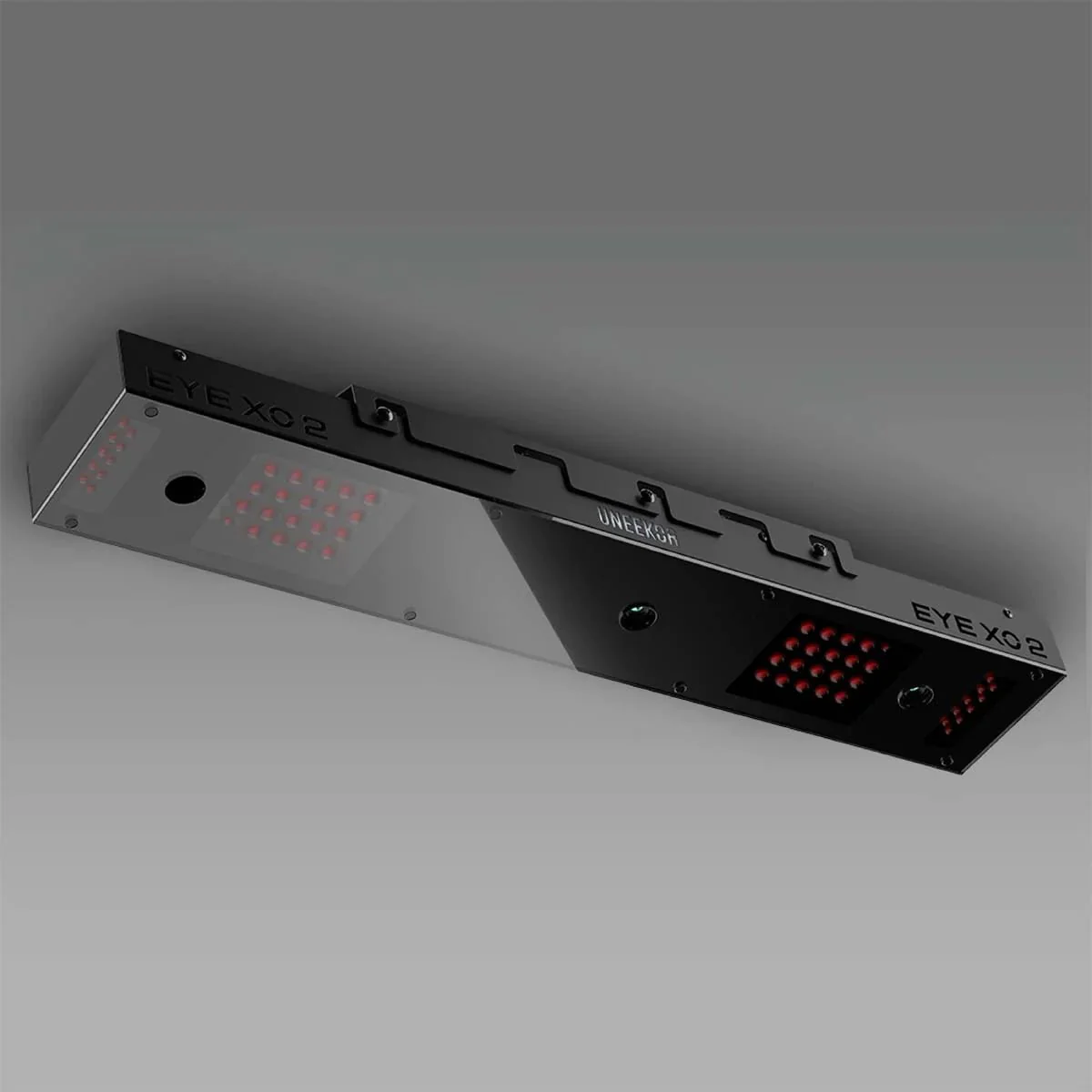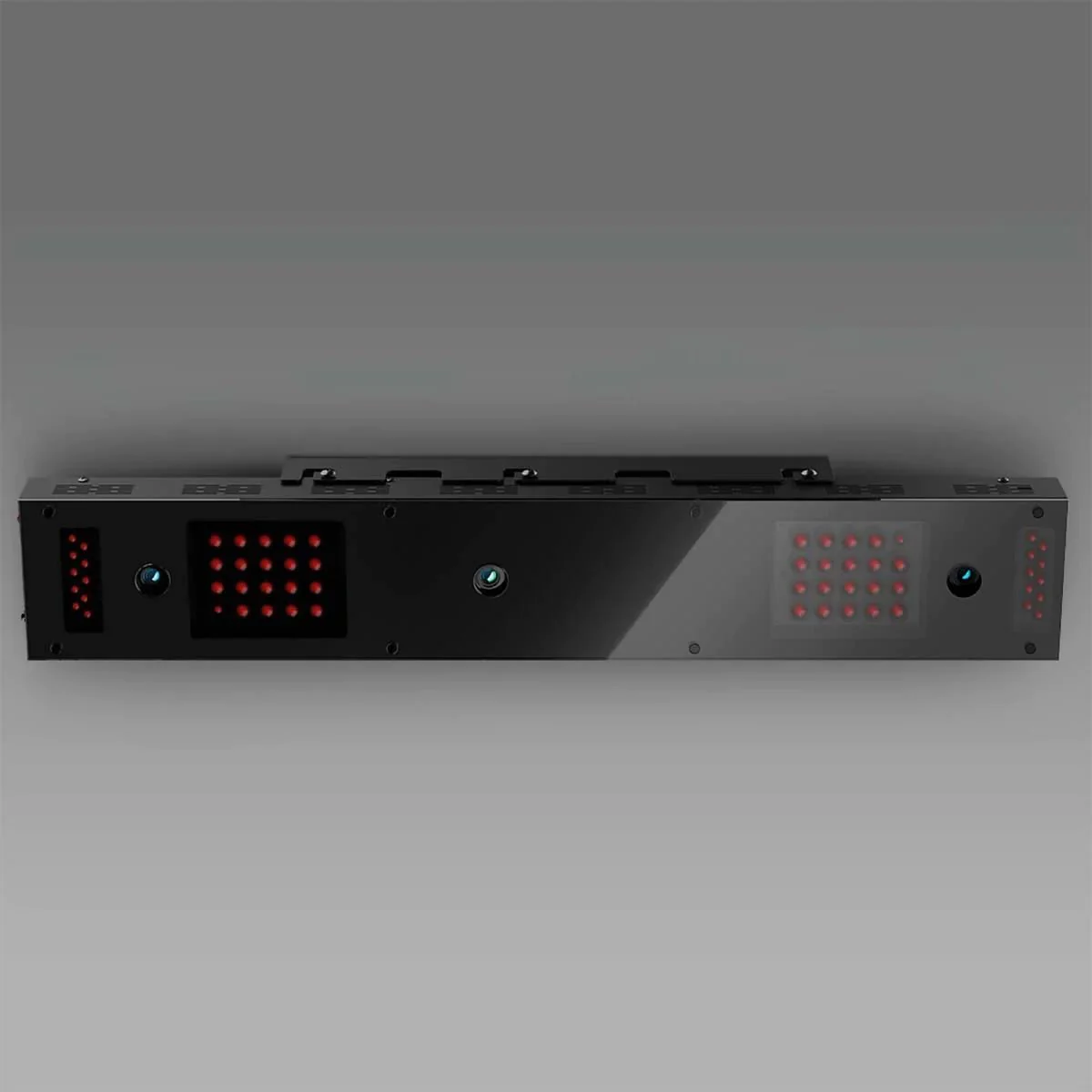
ProTee VX Launch Monitor
ProTee United VX Launch Monitor
ProTee United's new VX Launch Monitor seamlessly blends advanced technology with user-friendly simplicity. Featuring a sleek design and unparalleled accuracy, it stands out as the ultimate choice for your home-based launch monitoring needs. Currently, it is the most highly anticipated ceiling-mounted launch monitor on the market, boasting a wide array of exceptional features.
This state-of-the-art device has been meticulously crafted to provide an immersive experience while maintaining effortless usability. Thanks to our straightforward mounting and calibration process, you can have the VX ready to go within minutes! Once you're in the swing of things, you'll enjoy the thrill of playing golf in the comfort of your own home, free from the constraints of needing specially marked balls or clubs. With an affordable price tag, the VX ensures accessibility to individuals of all budget ranges, delivering not only these benefits but also much more.
We know the ProTee VX is new to the market & we want you to be comfortable about your purchase. Schedule a remote demonstration to ease your worries! Let us know in the chat box or email us at [email protected] that you'd be interested in a demo!
Note: We have a strict NO REFUND policy on the ProTee VX. All sales are final. There are no returns and no refunds.
Ships within approximately 2–3 weeks from the time the order is placed.
For detailed setup instructions, visit: ProTee VX Setup Guide
Play golf at home like never before!
Instant Reaction
A.I. (Artificial Intelligence) and Machine Learning powered smart shot analysis detection and processing software measures and projects all your data in less than a second, giving you an almost instant reaction to each shot.
Right and Left handed
The VX System works with both right and left handed players without having to recalibrate or reconfigure the launch monitor.
Easy Setup
With our easy mounting and calibration system, setting up the VX is effortless so you can start hitting golf balls in minutes.
Hitting Area
The hitting area can be configured. The maximum size is 65cm x 55cm / 25" x 21" (Length x Width).
ProTee Labs Software
Improve your swing with ProTee Labs! A perpetual license of ProTee Labs is included with your purchase. It includes features such as customisable panels, high-quality playback videos and a practice range. The clear layout allows you to see your data instantly after each shot, in a clear and organised manner designed to best suit your golfing needs. Start improving your swing right out of the box without the need for additional software.

The ProTee launch monitors will be accompanied by a software user interface that will display essential information such as ball, club, and flight data. Additionally, users can access features like video footage of their club's impact. Notably, all three systems share the same ProTee user interface and utilize consistent trajectory physics. ProTee has designed them with the intention of ensuring compatibility with various golf simulation software, including their own TGC 2019.
Compatible Software (sold seperately)
TGC, TGC 2019, ProTee Play, E6 Connect, GSPro & CreativeGolf 3D. More will follow soon.
All sales are final.
Compatible Software
Compatible Software (sold seperately)
TGC, TGC 2019, ProTee Play, E6 Connect, GSPro & CreativeGolf 3D. More will follow soon.
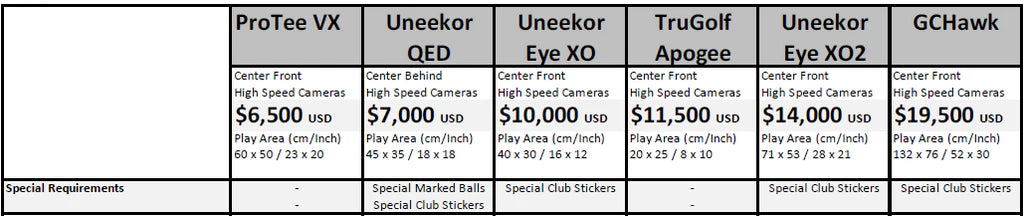
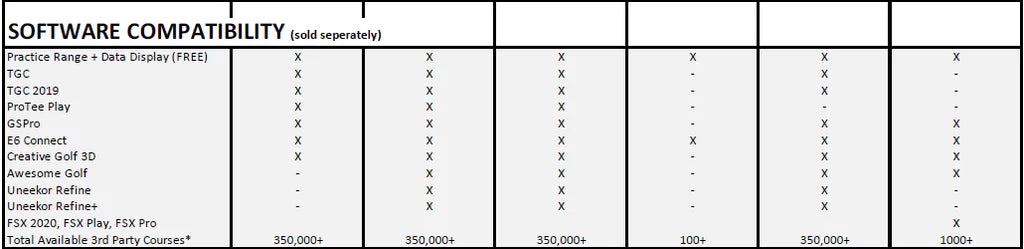
Comparison Chart
Comparison Chart
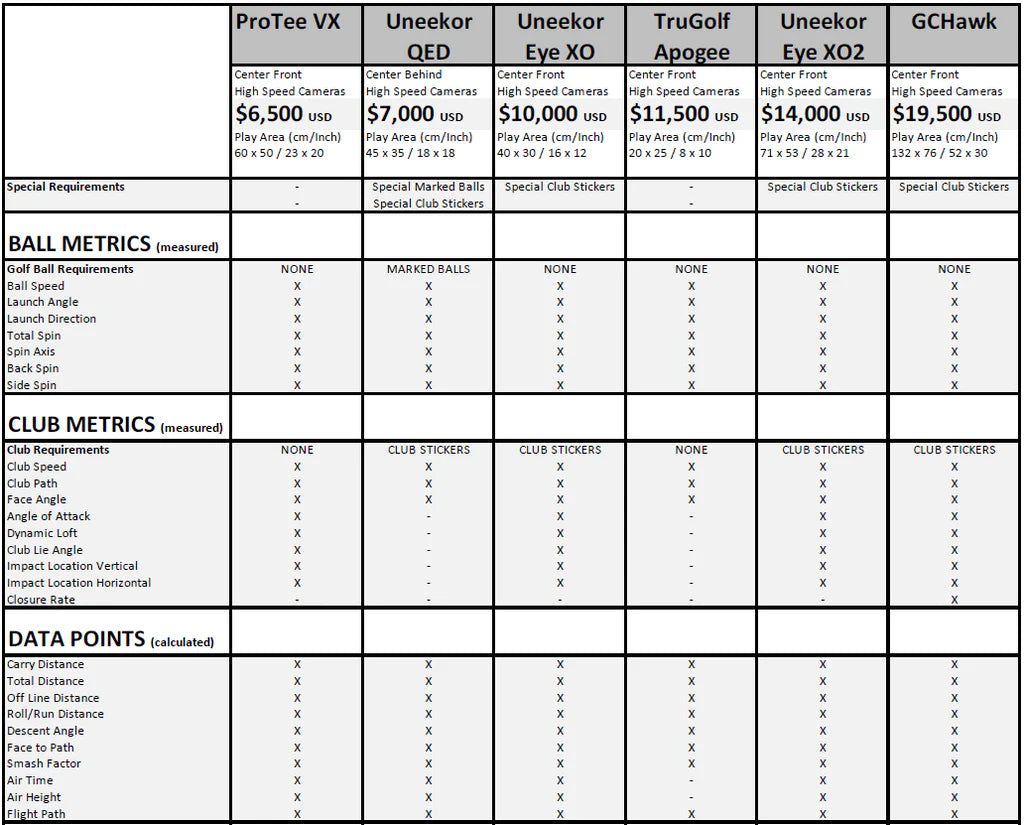

Data Points
Data Points
Ball Data Measured: Ball Speed, Total Spin, Spin Axis, Back Spin, Side Spin, Launch Direction, Launch Angle.
Club Data Measured: Club Speed, Swing Path, Club Face Angle, Club Face to Path, Attack Angle, Dynamic Loft, Club Lie Angle, Impact Point Vertical & Horizontal.
Flight Data: Flight Path, Apex Height, Apex Time, Total Distance, Carry Distance, Off Line, Air Time, Run, Descent Angle.
Computer Requirements
ProTee Launch Monitor Computer Requirements
- Operating System: 64 Bit Windows 10
- Processor: Intel Core i7-8xxx @ 3.00GHz
- Memory: 8 GB RAM
- Graphics: NVidia RTX 3060
- Network: Broadband Internet connection
- Hard Drive: 5 GB available space
- Operating System: 64 Bit Windows 10 or 11
- Processor: Intel Core i9-9xxx @ 3.00GHz or greater
- Memory: 16 GB RAM or more
- Graphics: NVidia RTX 3080 or better
- DirectX: Version 12
- Network: Broadband Internet connection
- Hard Drive: 30 GB available space
- Sound Card: DirectX 12 compatible
Not supported OS: Android, iOS, OSX and Linux, Virtual Machines
Not supported Graphics: Nvidia Quadro
ProTee VX Artificial Intelligence (A.I.)
More info about A.I. for club data
The ProTee VX is powered with Artificial Intelligence also known as A.I.
The integrated A.I. is primarily used for club data. The ProTee VX has been trained to detect a golf club, the type of club (currently driver, iron or putter) and where the face of the club is.
When the A.I. detects the face of the club, the ProTee VX can track the face at high-speeds. This will allow the ProTee VX to accurately detect the face angle, swing path, impact point and much more.
We at ProTee are continuously training the A.I. system to detect all sorts of golf club characteristics and we will update your ProTee VX with new training data as soon as it's available. The ProTee Labs software will check for updates on startup. Make sure you keep your software up-to-date, so you will always have the latest A.I. trained models loaded!
A.I. can make mistakes and a specific club might not be detected correctly, so we created a bug reporting tool in ProTee Labs. As soon as you find something that seems off, please send your bug report so we can investigate the issue and update the A.I. models!
NOTE: Artificial Intelligence (A.I.) is not used and/or needed for ball data or flight data. All data required to simulate ball flight is directly measured with high speed cameras (eg. ball speed, launch angle, ball direction, total spin and spin axis). A.I. is used to detect what club is being used (eg. driver, iron, putter) and to place "virtual stickers" on the club eliminating the use of real stickers. With these "virtual stickers" the high speed cameras will be able to track the club and club face in 3D and extract club data such as club speed, face angle, impact point location, and more.
What's in the box
What's in the box
Launch Monitor items
- ProTee VX Launch Monitor (1x)
- Camera Calibration Plate (1x)
- UTP Cat6 Network Cable 10m/32' (1x)
- USB to Ethernet Adapter (1x)
- Powercord (1x)
Mounting items
- Black Stainless Steel Mounting Plate (1x)
- Screws (4x) & Plugs (4x) for Mounting Plate
Mounting Instructions
Mounting Instructions
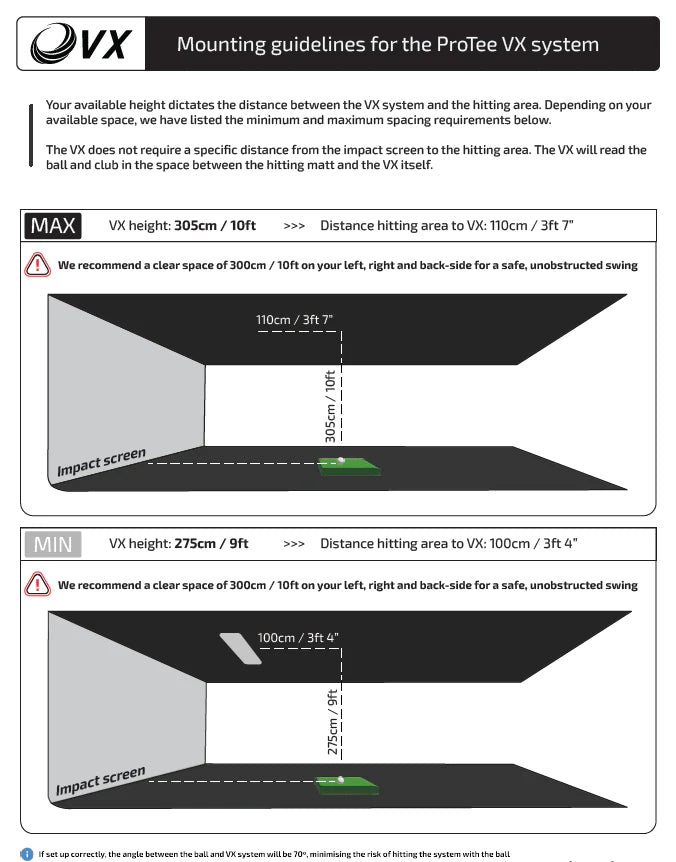
Hitting Area
The hitting area can be configured. The maximum size is 65cm x 55cm / 25" x 21" (Length x Width).
ProTee VX weight and dimensions
ProTee VX weight and dimensions
Product: ProTee Video Game System VX
HST/HS Code: 9504.50.00 (Video Game System)
Country of origin: The Netherlands
Boxed weight: 12 Kg /(26.5 lbs)
Boxed dimensions: 94x26x29 (LxWxH in cm)
VX Unit weight: 8.2 Kg (18 lbs)
VX Unit dimensions: 83x20x17 (LxWxH in cm)
Mounting plate weight: 1.2 Kg (2.6 lbs)
Mounting plate dimensions: 43.1x15.2x2.3 (LxWxH in cm)
Packing list:
- 1x ProTee VX Launch Monitor
- 1x Camera Calibration Plate
- 1x UTP Cat6 Network Cable 10m/32'
- 1x USB to Ethernet Adapter
- 1x Powercord
- 1x Black Stainless Steel Mounting Plate
- 4x Mounting Screw
- 4x Mounting Plug
Installing the Software
Installing the Software
Download ProTee Labs using the following link:
https://download.protee-united.com/protee/proteelabssetup.exe
ProTee VX Installation and Setup
ProTee VX Installation and Setup
Unboxing the VX
Mounting the VX
STEP 1
Below are the mounting guidelines for the VX launch monitor. Using these guidelines, position the ceiling mount plate correctly before continuing.
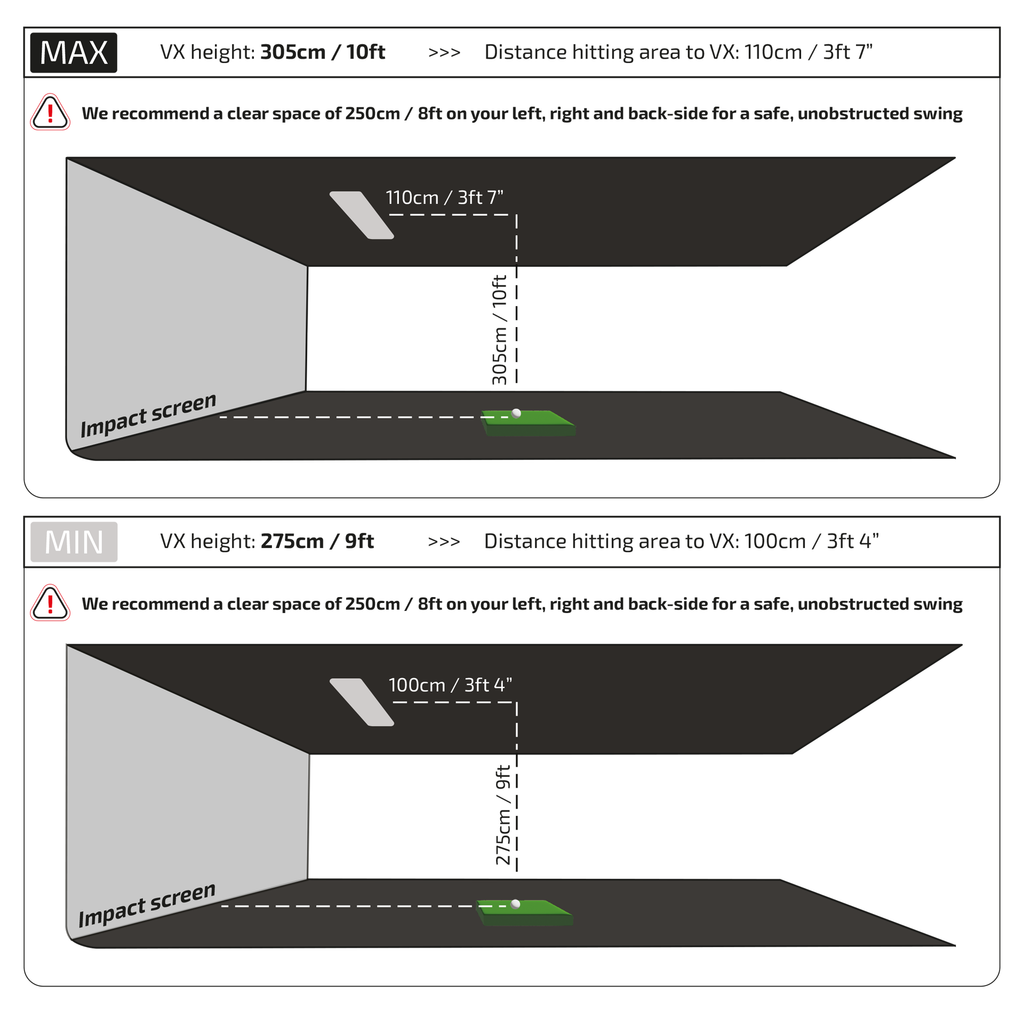
STEP 2
Following the guidelines in step 1, use the 4 screws (and 4 plugs if needed) to attach the mount to the ceiling. Make sure the arrow on the mount is pointing towards the impact screen with the mount parallel with your impact screen.
Make sure the mount is horizontally and vertically aligned perfectly straight.
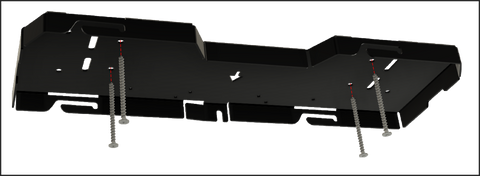
Ceiling mount plate - example screw positions
STEP 3
We strongly advise you to perform this step with 2 people.
Allign the VX Launch Monitor with the openings in the ceiling mount. Lift the system into the openings and slide the system to the left into the ceiling mount until the index plunger clicks into place.
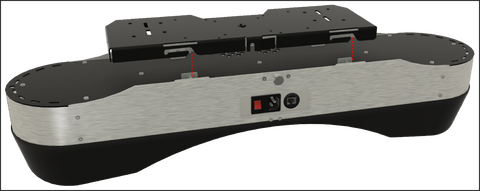
ProTee VX back view
STEP 4
Connect the power cable to your power outlet. Connect one end of the supplied 10m/32' Ethernet cable to the unit and one end to the USB to Ethernet adapter.
Connect the USB to Ethernet adapter to a blue USB 3.0 port on your computer.

STEP 5
Switch on the Unit by pressing the red switch on the back of the VX. You will see the left and right LED ring lights switch on for a couple of seconds. The light will switch off automatically. The software, which will be installed in the next steps, will switch the lights on when needed.
You are now ready to setup the software!
Installing the Software
Download ProTee Labs using the following link:
https://download.protee-united.com/protee/proteelabssetup.exe

Run proteelabssetup.exe from your download folder and click next.
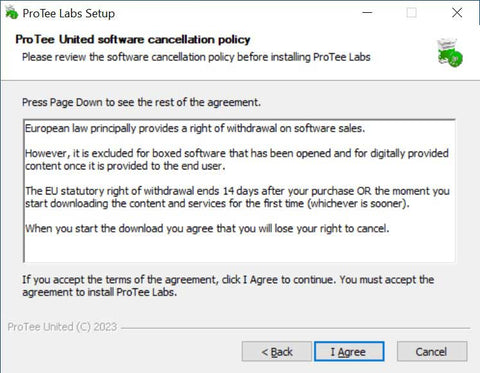
Accept the terms by clicking I Agree.
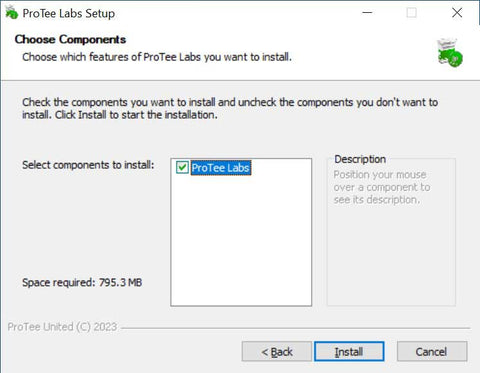
Select ProTee Labs and click next.
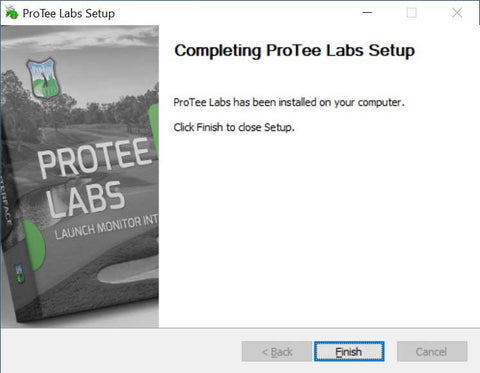
Click finish. A ProTee Labs icon will be created on your desktop.
Calibrating the VX Camera System
The ProTee VX is equiped with 2 high speed cameras, which needs to be calibrated when used for the first time. Run the ProTee Labs program from your desktop to start the calibration process.

Step 1: Go to the settings of ProTee Labs.

Step 2: Select the ProTeeVX from the list of devices and click CONNECT. Wait for the status on the top right to say "CONNECTED".
Step 3: When "CONNECTED" click CALIBRATE SYSTEM.

Step 4: Place the calibration board in the center of your play area.
Make sure the calibration board is pointed towards the screen and aligned straight with your HITTING MAT and SCREEN.
The alignment of the calibration board will show the cameras what is straight forward.
If you find later that the results are slightly off due to misalignment, you can recalibrate the VX at any time.
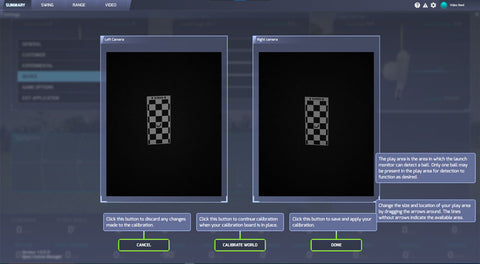
Step 5: Click CALIBRATE WORLD.
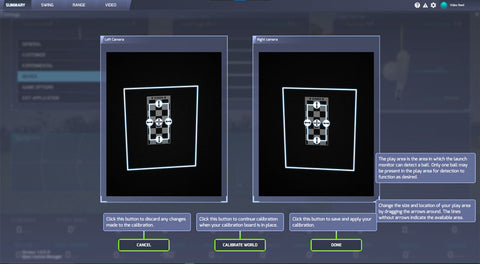
Step 6: Manually adjust your play area.
The play area defines the limits in which the VX will find your golf ball and detects shots.
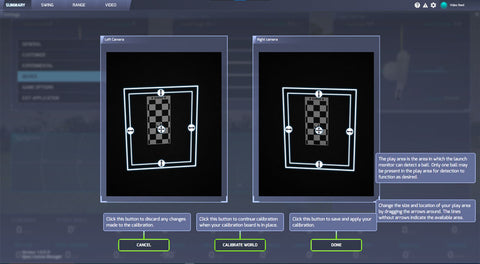
Step 7: Click DONE.
You will be returned to the settings screen. The VX will now try to find a golfball in the hitting area you just defined.
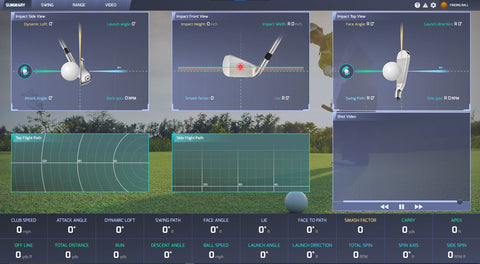
ProTee Labs will show the status of the unit in the top right corner. When the VX finds a ball in the hitting area, the status will change to "Ready for shot".
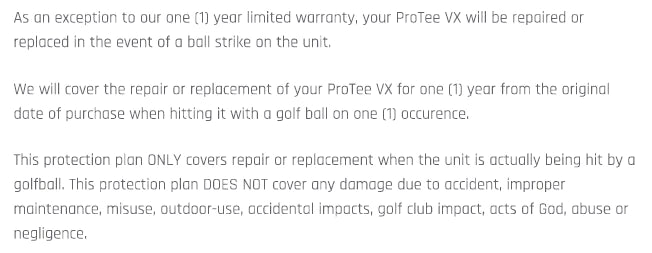
Ball Strike Insurance
ProTee XV Ball Strike Insurance
Videos
Videos
How to Calibrate - ProTee United VX
How to Shoot
Product Information
Product Information
Shipping & Returns
Shipping & Returns


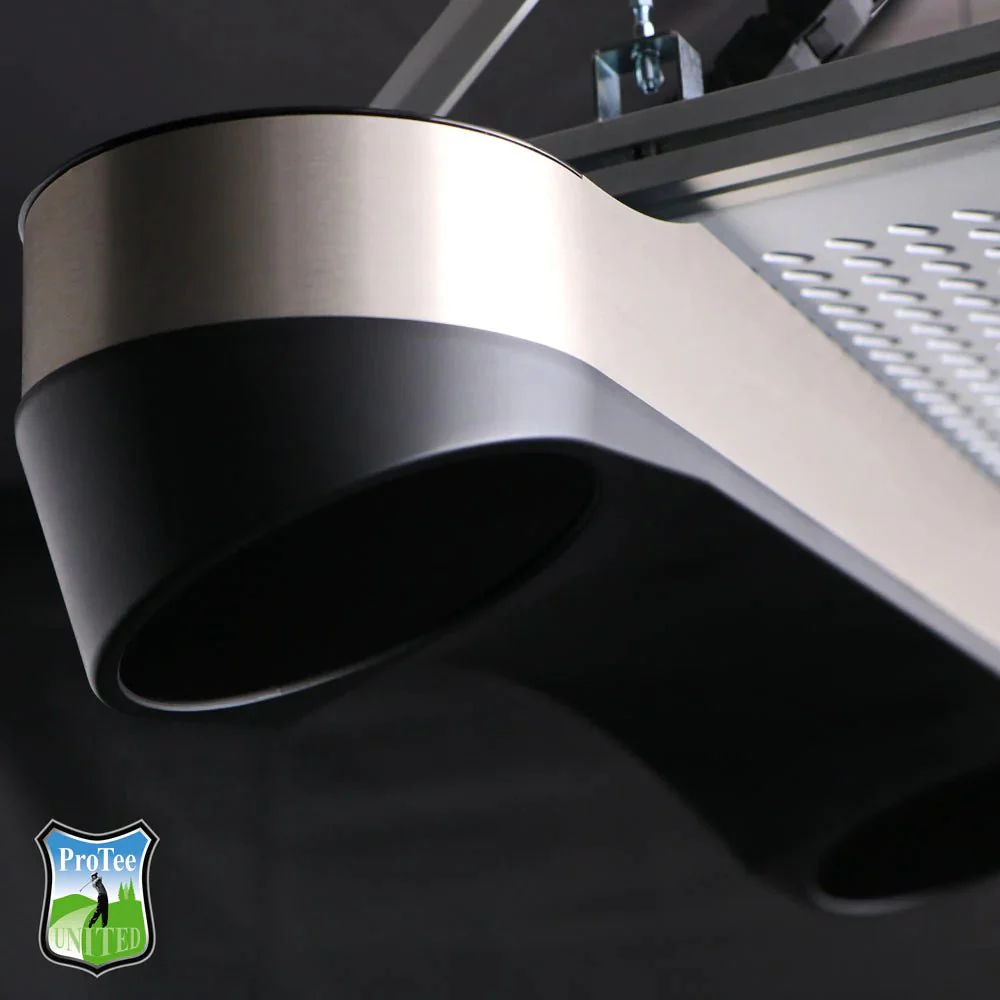


ProTee VX Launch Monitor
ProTee VX Launch Monitor
ProTee United VX Launch Monitor
ProTee United's new VX Launch Monitor seamlessly blends advanced technology with user-friendly simplicity. Featuring a sleek design and unparalleled accuracy, it stands out as the ultimate choice for your home-based launch monitoring needs. Currently, it is the most highly anticipated ceiling-mounted launch monitor on the market, boasting a wide array of exceptional features.
This state-of-the-art device has been meticulously crafted to provide an immersive experience while maintaining effortless usability. Thanks to our straightforward mounting and calibration process, you can have the VX ready to go within minutes! Once you're in the swing of things, you'll enjoy the thrill of playing golf in the comfort of your own home, free from the constraints of needing specially marked balls or clubs. With an affordable price tag, the VX ensures accessibility to individuals of all budget ranges, delivering not only these benefits but also much more.
We know the ProTee VX is new to the market & we want you to be comfortable about your purchase. Schedule a remote demonstration to ease your worries! Let us know in the chat box or email us at [email protected] that you'd be interested in a demo!
Note: We have a strict NO REFUND policy on the ProTee VX. All sales are final. There are no returns and no refunds.
Ships within approximately 2–3 weeks from the time the order is placed.
For detailed setup instructions, visit: ProTee VX Setup Guide
Play golf at home like never before!
Instant Reaction
A.I. (Artificial Intelligence) and Machine Learning powered smart shot analysis detection and processing software measures and projects all your data in less than a second, giving you an almost instant reaction to each shot.
Right and Left handed
The VX System works with both right and left handed players without having to recalibrate or reconfigure the launch monitor.
Easy Setup
With our easy mounting and calibration system, setting up the VX is effortless so you can start hitting golf balls in minutes.
Hitting Area
The hitting area can be configured. The maximum size is 65cm x 55cm / 25" x 21" (Length x Width).
ProTee Labs Software
Improve your swing with ProTee Labs! A perpetual license of ProTee Labs is included with your purchase. It includes features such as customisable panels, high-quality playback videos and a practice range. The clear layout allows you to see your data instantly after each shot, in a clear and organised manner designed to best suit your golfing needs. Start improving your swing right out of the box without the need for additional software.
The ProTee launch monitors will be accompanied by a software user interface that will display essential information such as ball, club, and flight data. Additionally, users can access features like video footage of their club's impact. Notably, all three systems share the same ProTee user interface and utilize consistent trajectory physics. ProTee has designed them with the intention of ensuring compatibility with various golf simulation software, including their own TGC 2019.
Compatible Software (sold seperately)
TGC, TGC 2019, ProTee Play, E6 Connect, GSPro & CreativeGolf 3D. More will follow soon.
All sales are final.
Compatible Software
Compatible Software (sold seperately)
TGC, TGC 2019, ProTee Play, E6 Connect, GSPro & CreativeGolf 3D. More will follow soon.
Comparison Chart
Comparison Chart
Data Points
Data Points
Ball Data Measured: Ball Speed, Total Spin, Spin Axis, Back Spin, Side Spin, Launch Direction, Launch Angle.
Club Data Measured: Club Speed, Swing Path, Club Face Angle, Club Face to Path, Attack Angle, Dynamic Loft, Club Lie Angle, Impact Point Vertical & Horizontal.
Flight Data: Flight Path, Apex Height, Apex Time, Total Distance, Carry Distance, Off Line, Air Time, Run, Descent Angle.
Computer Requirements
ProTee Launch Monitor Computer Requirements
- Operating System: 64 Bit Windows 10
- Processor: Intel Core i7-8xxx @ 3.00GHz
- Memory: 8 GB RAM
- Graphics: NVidia RTX 3060
- Network: Broadband Internet connection
- Hard Drive: 5 GB available space
- Operating System: 64 Bit Windows 10 or 11
- Processor: Intel Core i9-9xxx @ 3.00GHz or greater
- Memory: 16 GB RAM or more
- Graphics: NVidia RTX 3080 or better
- DirectX: Version 12
- Network: Broadband Internet connection
- Hard Drive: 30 GB available space
- Sound Card: DirectX 12 compatible
Not supported OS: Android, iOS, OSX and Linux, Virtual Machines
Not supported Graphics: Nvidia Quadro
ProTee VX Artificial Intelligence (A.I.)
More info about A.I. for club data
The ProTee VX is powered with Artificial Intelligence also known as A.I.
The integrated A.I. is primarily used for club data. The ProTee VX has been trained to detect a golf club, the type of club (currently driver, iron or putter) and where the face of the club is.
When the A.I. detects the face of the club, the ProTee VX can track the face at high-speeds. This will allow the ProTee VX to accurately detect the face angle, swing path, impact point and much more.
We at ProTee are continuously training the A.I. system to detect all sorts of golf club characteristics and we will update your ProTee VX with new training data as soon as it's available. The ProTee Labs software will check for updates on startup. Make sure you keep your software up-to-date, so you will always have the latest A.I. trained models loaded!
A.I. can make mistakes and a specific club might not be detected correctly, so we created a bug reporting tool in ProTee Labs. As soon as you find something that seems off, please send your bug report so we can investigate the issue and update the A.I. models!
NOTE: Artificial Intelligence (A.I.) is not used and/or needed for ball data or flight data. All data required to simulate ball flight is directly measured with high speed cameras (eg. ball speed, launch angle, ball direction, total spin and spin axis). A.I. is used to detect what club is being used (eg. driver, iron, putter) and to place "virtual stickers" on the club eliminating the use of real stickers. With these "virtual stickers" the high speed cameras will be able to track the club and club face in 3D and extract club data such as club speed, face angle, impact point location, and more.
What's in the box
What's in the box
Launch Monitor items
- ProTee VX Launch Monitor (1x)
- Camera Calibration Plate (1x)
- UTP Cat6 Network Cable 10m/32' (1x)
- USB to Ethernet Adapter (1x)
- Powercord (1x)
Mounting items
- Black Stainless Steel Mounting Plate (1x)
- Screws (4x) & Plugs (4x) for Mounting Plate
Mounting Instructions
Mounting Instructions
Hitting Area
The hitting area can be configured. The maximum size is 65cm x 55cm / 25" x 21" (Length x Width).
ProTee VX weight and dimensions
ProTee VX weight and dimensions
Product: ProTee Video Game System VX
HST/HS Code: 9504.50.00 (Video Game System)
Country of origin: The Netherlands
Boxed weight: 12 Kg /(26.5 lbs)
Boxed dimensions: 94x26x29 (LxWxH in cm)
VX Unit weight: 8.2 Kg (18 lbs)
VX Unit dimensions: 83x20x17 (LxWxH in cm)
Mounting plate weight: 1.2 Kg (2.6 lbs)
Mounting plate dimensions: 43.1x15.2x2.3 (LxWxH in cm)
Packing list:
- 1x ProTee VX Launch Monitor
- 1x Camera Calibration Plate
- 1x UTP Cat6 Network Cable 10m/32'
- 1x USB to Ethernet Adapter
- 1x Powercord
- 1x Black Stainless Steel Mounting Plate
- 4x Mounting Screw
- 4x Mounting Plug
Installing the Software
Installing the Software
Download ProTee Labs using the following link:
https://download.protee-united.com/protee/proteelabssetup.exe
ProTee VX Installation and Setup
ProTee VX Installation and Setup
Unboxing the VX
Mounting the VX
STEP 1
Below are the mounting guidelines for the VX launch monitor. Using these guidelines, position the ceiling mount plate correctly before continuing.
STEP 2
Following the guidelines in step 1, use the 4 screws (and 4 plugs if needed) to attach the mount to the ceiling. Make sure the arrow on the mount is pointing towards the impact screen with the mount parallel with your impact screen.
Make sure the mount is horizontally and vertically aligned perfectly straight.
Ceiling mount plate - example screw positions
STEP 3
We strongly advise you to perform this step with 2 people.
Allign the VX Launch Monitor with the openings in the ceiling mount. Lift the system into the openings and slide the system to the left into the ceiling mount until the index plunger clicks into place.
ProTee VX back view
STEP 4
Connect the power cable to your power outlet. Connect one end of the supplied 10m/32' Ethernet cable to the unit and one end to the USB to Ethernet adapter.
Connect the USB to Ethernet adapter to a blue USB 3.0 port on your computer.
STEP 5
Switch on the Unit by pressing the red switch on the back of the VX. You will see the left and right LED ring lights switch on for a couple of seconds. The light will switch off automatically. The software, which will be installed in the next steps, will switch the lights on when needed.
You are now ready to setup the software!
Installing the Software
Download ProTee Labs using the following link:
https://download.protee-united.com/protee/proteelabssetup.exe
Run proteelabssetup.exe from your download folder and click next.
Accept the terms by clicking I Agree.
Select ProTee Labs and click next.
Click finish. A ProTee Labs icon will be created on your desktop.
Calibrating the VX Camera System
The ProTee VX is equiped with 2 high speed cameras, which needs to be calibrated when used for the first time. Run the ProTee Labs program from your desktop to start the calibration process.
Step 1: Go to the settings of ProTee Labs.
Step 2: Select the ProTeeVX from the list of devices and click CONNECT. Wait for the status on the top right to say "CONNECTED".
Step 3: When "CONNECTED" click CALIBRATE SYSTEM.
Step 4: Place the calibration board in the center of your play area.
Make sure the calibration board is pointed towards the screen and aligned straight with your HITTING MAT and SCREEN.
The alignment of the calibration board will show the cameras what is straight forward.
If you find later that the results are slightly off due to misalignment, you can recalibrate the VX at any time.
Step 5: Click CALIBRATE WORLD.
Step 6: Manually adjust your play area.
The play area defines the limits in which the VX will find your golf ball and detects shots.
Step 7: Click DONE.
You will be returned to the settings screen. The VX will now try to find a golfball in the hitting area you just defined.
ProTee Labs will show the status of the unit in the top right corner. When the VX finds a ball in the hitting area, the status will change to "Ready for shot".
Ball Strike Insurance
ProTee XV Ball Strike Insurance
Videos
Videos
How to Calibrate - ProTee United VX
How to Shoot
Original: $6,500.00
-65%$6,500.00
$2,275.00Product Information
Product Information
Shipping & Returns
Shipping & Returns
Description
ProTee United VX Launch Monitor
ProTee United's new VX Launch Monitor seamlessly blends advanced technology with user-friendly simplicity. Featuring a sleek design and unparalleled accuracy, it stands out as the ultimate choice for your home-based launch monitoring needs. Currently, it is the most highly anticipated ceiling-mounted launch monitor on the market, boasting a wide array of exceptional features.
This state-of-the-art device has been meticulously crafted to provide an immersive experience while maintaining effortless usability. Thanks to our straightforward mounting and calibration process, you can have the VX ready to go within minutes! Once you're in the swing of things, you'll enjoy the thrill of playing golf in the comfort of your own home, free from the constraints of needing specially marked balls or clubs. With an affordable price tag, the VX ensures accessibility to individuals of all budget ranges, delivering not only these benefits but also much more.
We know the ProTee VX is new to the market & we want you to be comfortable about your purchase. Schedule a remote demonstration to ease your worries! Let us know in the chat box or email us at [email protected] that you'd be interested in a demo!
Note: We have a strict NO REFUND policy on the ProTee VX. All sales are final. There are no returns and no refunds.
Ships within approximately 2–3 weeks from the time the order is placed.
For detailed setup instructions, visit: ProTee VX Setup Guide
Play golf at home like never before!
Instant Reaction
A.I. (Artificial Intelligence) and Machine Learning powered smart shot analysis detection and processing software measures and projects all your data in less than a second, giving you an almost instant reaction to each shot.
Right and Left handed
The VX System works with both right and left handed players without having to recalibrate or reconfigure the launch monitor.
Easy Setup
With our easy mounting and calibration system, setting up the VX is effortless so you can start hitting golf balls in minutes.
Hitting Area
The hitting area can be configured. The maximum size is 65cm x 55cm / 25" x 21" (Length x Width).
ProTee Labs Software
Improve your swing with ProTee Labs! A perpetual license of ProTee Labs is included with your purchase. It includes features such as customisable panels, high-quality playback videos and a practice range. The clear layout allows you to see your data instantly after each shot, in a clear and organised manner designed to best suit your golfing needs. Start improving your swing right out of the box without the need for additional software.
The ProTee launch monitors will be accompanied by a software user interface that will display essential information such as ball, club, and flight data. Additionally, users can access features like video footage of their club's impact. Notably, all three systems share the same ProTee user interface and utilize consistent trajectory physics. ProTee has designed them with the intention of ensuring compatibility with various golf simulation software, including their own TGC 2019.
Compatible Software (sold seperately)
TGC, TGC 2019, ProTee Play, E6 Connect, GSPro & CreativeGolf 3D. More will follow soon.
All sales are final.
Compatible Software
Compatible Software (sold seperately)
TGC, TGC 2019, ProTee Play, E6 Connect, GSPro & CreativeGolf 3D. More will follow soon.
Comparison Chart
Comparison Chart
Data Points
Data Points
Ball Data Measured: Ball Speed, Total Spin, Spin Axis, Back Spin, Side Spin, Launch Direction, Launch Angle.
Club Data Measured: Club Speed, Swing Path, Club Face Angle, Club Face to Path, Attack Angle, Dynamic Loft, Club Lie Angle, Impact Point Vertical & Horizontal.
Flight Data: Flight Path, Apex Height, Apex Time, Total Distance, Carry Distance, Off Line, Air Time, Run, Descent Angle.
Computer Requirements
ProTee Launch Monitor Computer Requirements
- Operating System: 64 Bit Windows 10
- Processor: Intel Core i7-8xxx @ 3.00GHz
- Memory: 8 GB RAM
- Graphics: NVidia RTX 3060
- Network: Broadband Internet connection
- Hard Drive: 5 GB available space
- Operating System: 64 Bit Windows 10 or 11
- Processor: Intel Core i9-9xxx @ 3.00GHz or greater
- Memory: 16 GB RAM or more
- Graphics: NVidia RTX 3080 or better
- DirectX: Version 12
- Network: Broadband Internet connection
- Hard Drive: 30 GB available space
- Sound Card: DirectX 12 compatible
Not supported OS: Android, iOS, OSX and Linux, Virtual Machines
Not supported Graphics: Nvidia Quadro
ProTee VX Artificial Intelligence (A.I.)
More info about A.I. for club data
The ProTee VX is powered with Artificial Intelligence also known as A.I.
The integrated A.I. is primarily used for club data. The ProTee VX has been trained to detect a golf club, the type of club (currently driver, iron or putter) and where the face of the club is.
When the A.I. detects the face of the club, the ProTee VX can track the face at high-speeds. This will allow the ProTee VX to accurately detect the face angle, swing path, impact point and much more.
We at ProTee are continuously training the A.I. system to detect all sorts of golf club characteristics and we will update your ProTee VX with new training data as soon as it's available. The ProTee Labs software will check for updates on startup. Make sure you keep your software up-to-date, so you will always have the latest A.I. trained models loaded!
A.I. can make mistakes and a specific club might not be detected correctly, so we created a bug reporting tool in ProTee Labs. As soon as you find something that seems off, please send your bug report so we can investigate the issue and update the A.I. models!
NOTE: Artificial Intelligence (A.I.) is not used and/or needed for ball data or flight data. All data required to simulate ball flight is directly measured with high speed cameras (eg. ball speed, launch angle, ball direction, total spin and spin axis). A.I. is used to detect what club is being used (eg. driver, iron, putter) and to place "virtual stickers" on the club eliminating the use of real stickers. With these "virtual stickers" the high speed cameras will be able to track the club and club face in 3D and extract club data such as club speed, face angle, impact point location, and more.
What's in the box
What's in the box
Launch Monitor items
- ProTee VX Launch Monitor (1x)
- Camera Calibration Plate (1x)
- UTP Cat6 Network Cable 10m/32' (1x)
- USB to Ethernet Adapter (1x)
- Powercord (1x)
Mounting items
- Black Stainless Steel Mounting Plate (1x)
- Screws (4x) & Plugs (4x) for Mounting Plate
Mounting Instructions
Mounting Instructions
Hitting Area
The hitting area can be configured. The maximum size is 65cm x 55cm / 25" x 21" (Length x Width).
ProTee VX weight and dimensions
ProTee VX weight and dimensions
Product: ProTee Video Game System VX
HST/HS Code: 9504.50.00 (Video Game System)
Country of origin: The Netherlands
Boxed weight: 12 Kg /(26.5 lbs)
Boxed dimensions: 94x26x29 (LxWxH in cm)
VX Unit weight: 8.2 Kg (18 lbs)
VX Unit dimensions: 83x20x17 (LxWxH in cm)
Mounting plate weight: 1.2 Kg (2.6 lbs)
Mounting plate dimensions: 43.1x15.2x2.3 (LxWxH in cm)
Packing list:
- 1x ProTee VX Launch Monitor
- 1x Camera Calibration Plate
- 1x UTP Cat6 Network Cable 10m/32'
- 1x USB to Ethernet Adapter
- 1x Powercord
- 1x Black Stainless Steel Mounting Plate
- 4x Mounting Screw
- 4x Mounting Plug
Installing the Software
Installing the Software
Download ProTee Labs using the following link:
https://download.protee-united.com/protee/proteelabssetup.exe
ProTee VX Installation and Setup
ProTee VX Installation and Setup
Unboxing the VX
Mounting the VX
STEP 1
Below are the mounting guidelines for the VX launch monitor. Using these guidelines, position the ceiling mount plate correctly before continuing.
STEP 2
Following the guidelines in step 1, use the 4 screws (and 4 plugs if needed) to attach the mount to the ceiling. Make sure the arrow on the mount is pointing towards the impact screen with the mount parallel with your impact screen.
Make sure the mount is horizontally and vertically aligned perfectly straight.
Ceiling mount plate - example screw positions
STEP 3
We strongly advise you to perform this step with 2 people.
Allign the VX Launch Monitor with the openings in the ceiling mount. Lift the system into the openings and slide the system to the left into the ceiling mount until the index plunger clicks into place.
ProTee VX back view
STEP 4
Connect the power cable to your power outlet. Connect one end of the supplied 10m/32' Ethernet cable to the unit and one end to the USB to Ethernet adapter.
Connect the USB to Ethernet adapter to a blue USB 3.0 port on your computer.
STEP 5
Switch on the Unit by pressing the red switch on the back of the VX. You will see the left and right LED ring lights switch on for a couple of seconds. The light will switch off automatically. The software, which will be installed in the next steps, will switch the lights on when needed.
You are now ready to setup the software!
Installing the Software
Download ProTee Labs using the following link:
https://download.protee-united.com/protee/proteelabssetup.exe
Run proteelabssetup.exe from your download folder and click next.
Accept the terms by clicking I Agree.
Select ProTee Labs and click next.
Click finish. A ProTee Labs icon will be created on your desktop.
Calibrating the VX Camera System
The ProTee VX is equiped with 2 high speed cameras, which needs to be calibrated when used for the first time. Run the ProTee Labs program from your desktop to start the calibration process.
Step 1: Go to the settings of ProTee Labs.
Step 2: Select the ProTeeVX from the list of devices and click CONNECT. Wait for the status on the top right to say "CONNECTED".
Step 3: When "CONNECTED" click CALIBRATE SYSTEM.
Step 4: Place the calibration board in the center of your play area.
Make sure the calibration board is pointed towards the screen and aligned straight with your HITTING MAT and SCREEN.
The alignment of the calibration board will show the cameras what is straight forward.
If you find later that the results are slightly off due to misalignment, you can recalibrate the VX at any time.
Step 5: Click CALIBRATE WORLD.
Step 6: Manually adjust your play area.
The play area defines the limits in which the VX will find your golf ball and detects shots.
Step 7: Click DONE.
You will be returned to the settings screen. The VX will now try to find a golfball in the hitting area you just defined.
ProTee Labs will show the status of the unit in the top right corner. When the VX finds a ball in the hitting area, the status will change to "Ready for shot".
Ball Strike Insurance
ProTee XV Ball Strike Insurance
Videos
Videos
How to Calibrate - ProTee United VX
How to Shoot